
Help guides · Operations
Work through Actions
- For
- Owners and administrators, Operations managers, Office managers, Facilities coordinators
- Booking system
- Hostaway and Uplisting
- Last checked
Actions is the team's list of follow-up work. An action can be linked to a property, an exception or a facilities record.
Steps
- Open Actions in the menu.
- Choose the view or filters for the work you want to handle.
- Open an action to read its source, owner and progress.
- Record an update, assign responsibility or complete the action when the work is done.
Office managers, operations managers and facilities members can create and update actions when their role has the required permission. A management read-only member can view actions but cannot create one.
Administrators also have Automation under Settings, then More settings. It shows recommendations that can be scanned, prepared or dismissed. Review a recommendation before acting; it does not automatically complete an action on the board.
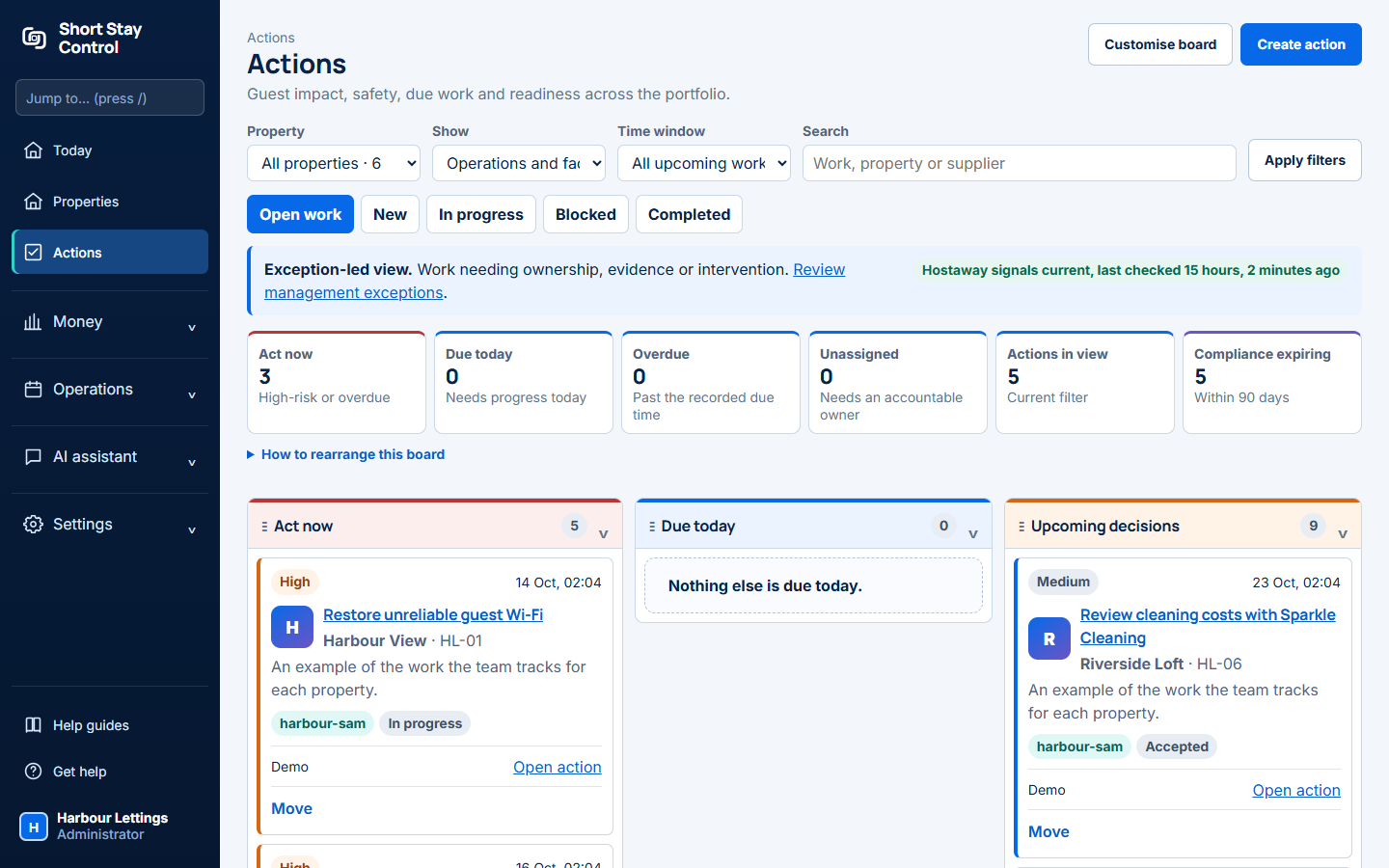
Figure 1. The Actions board in the demonstration workspace.
What you will see
The board separates assigned and unassigned work. An administrator or operations manager can manage actions. An office manager can handle operations work according to its current permissions. Facilities members work from their assigned property and facilities pages. Read-only members cannot change actions.
If something goes wrong
- "Nothing unassigned in this view." There may be no unassigned work, or your filters may hide it. Check the other views.
- "No progress updates yet." Open the action and add the first update when work begins.
- If an action refers to a property you cannot open, ask an administrator to check your property assignment and role.