
Help guides · Settings
Close a workspace
- For
- Owners and administrators
- Booking system
- Hostaway and Uplisting
- Last checked
Closing stops new work. Close this workspace is available during a free trial or when there is no live paid subscription. If you are paying, first cancel renewal and wait until the current term ends. The time available to export then depends on how you close.
Steps
- Open Settings, then Plan and billing. If you have a live paid subscription, use Cancel subscription first; you can close the workspace after its paid term ends.
- When Close this workspace is available, open it and read the dates and export consequences.
- If you are outside a free trial, download the workspace data before closing if you need a copy. Trial workspaces cannot download a full export.
- Type the workspace name exactly as shown and press the close button.
- Keep the confirmation email for your records.
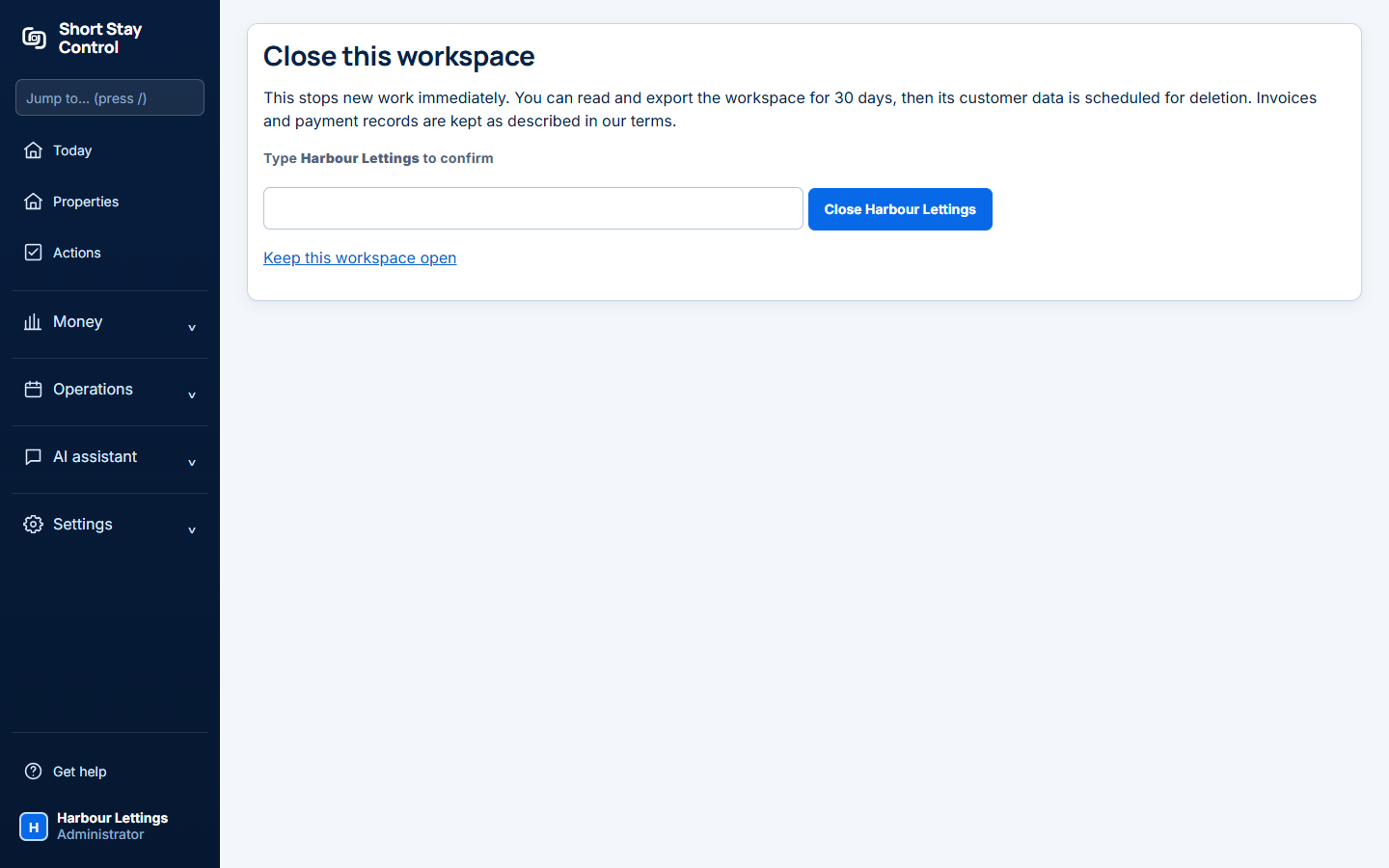
Figure 1. The confirmation page in a local demonstration workspace. No closure was submitted.
What you will see
After a paid term has ended, the closed workspace is read only and administrators can export for 30 days before customer data is scheduled for deletion. During that window, the notice can offer Reopen this workspace or Choose a plan to reopen. For a free trial, closing stops work immediately; data is deleted within 7 days and cannot be downloaded or restored. Invoices and payment records are kept as described in the terms. Only administrators can close a workspace.
If something goes wrong
- "Type the workspace name exactly as shown." Copy the spelling from the confirmation label and try again.
- "Stripe could not end the trial just now, so nothing has changed." Wait a few minutes and try again.
- If you only want to stop future renewal, use [Cancel your subscription](33-cancel-subscription.md) and keep the workspace open until its access end date.
- If Close this workspace is absent during a paid term, wait until the term ends after cancelling renewal. The billing page shows the access end date.