
Help guides · Getting started
Connect Hostaway
- For
- Owners and administrators
- Booking system
- Hostaway
- Last checked
Short Stay Control reads your properties, bookings and costs from Hostaway. It does not change your bookings, prices, calendars or guests, and it does not read guest messages. An administrator can send an approved expense after a separate confirmation.
You need a Hostaway account where you can open Settings, and to be an administrator of your Short Stay Control workspace.
Steps
- In Hostaway, open Settings, then Hostaway API (application programming interface). Press Create if nothing is listed yet.
- Copy the Account ID (account identifier). It is a number, around six digits.
- Copy the API key (application programming interface key, a long password that lets one program read from another). It is long, and Hostaway shows it only once, so keep that tab open until you have pasted it.
- In Short Stay Control, on Connect {your workspace name} to your booking system, open I use Hostaway.
- Paste the Account ID into Your Hostaway account ID and the key into Your Hostaway API key.
- Press Connect Hostaway.
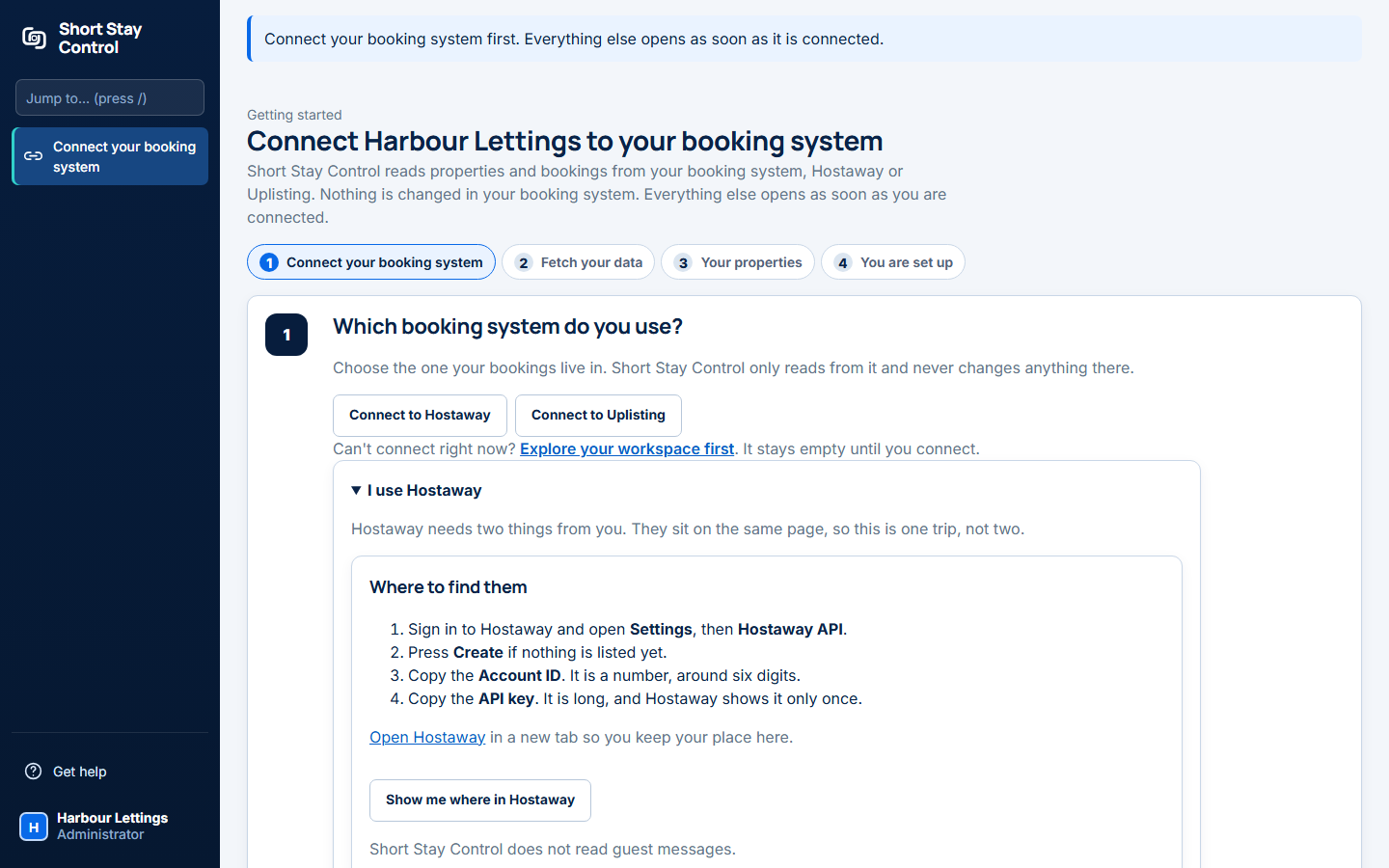
The page heading uses your workspace name; this example is Harbour Lettings.
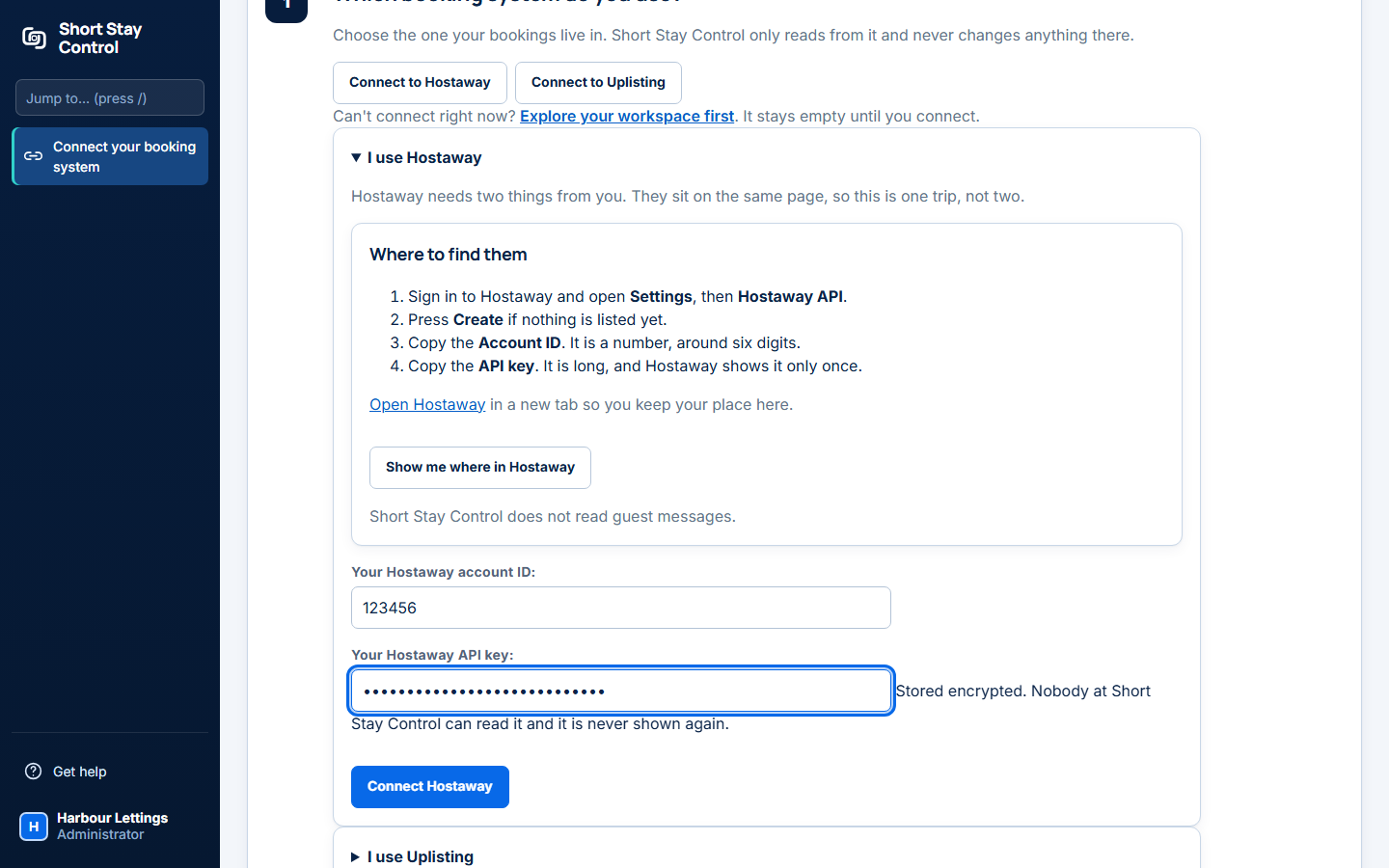
Figure 1. Both boxes filled in. The key shows as dots, and this one is a practice value.
The key is stored encrypted. Nobody at Short Stay Control can read it and it is never shown again. If you want a guided look at where things sit in Hostaway, press Show me where in Hostaway on the same page.
What you will see
The Set up {your workspace name} page moves through four steps: Connect your booking system, Fetch your data, Your properties and You are set up. Under What we fetched you see a Done next to each part Hostaway allowed us to read: your properties, bookings, costs and calendar. Then:
> We have read your first 100 of each. Your properties are ready to look at now. We are reading the rest of your history in the background. You can leave this page and it carries on without you.
Then Nightly refresh switched on ("Your figures stay current without anyone pressing anything").
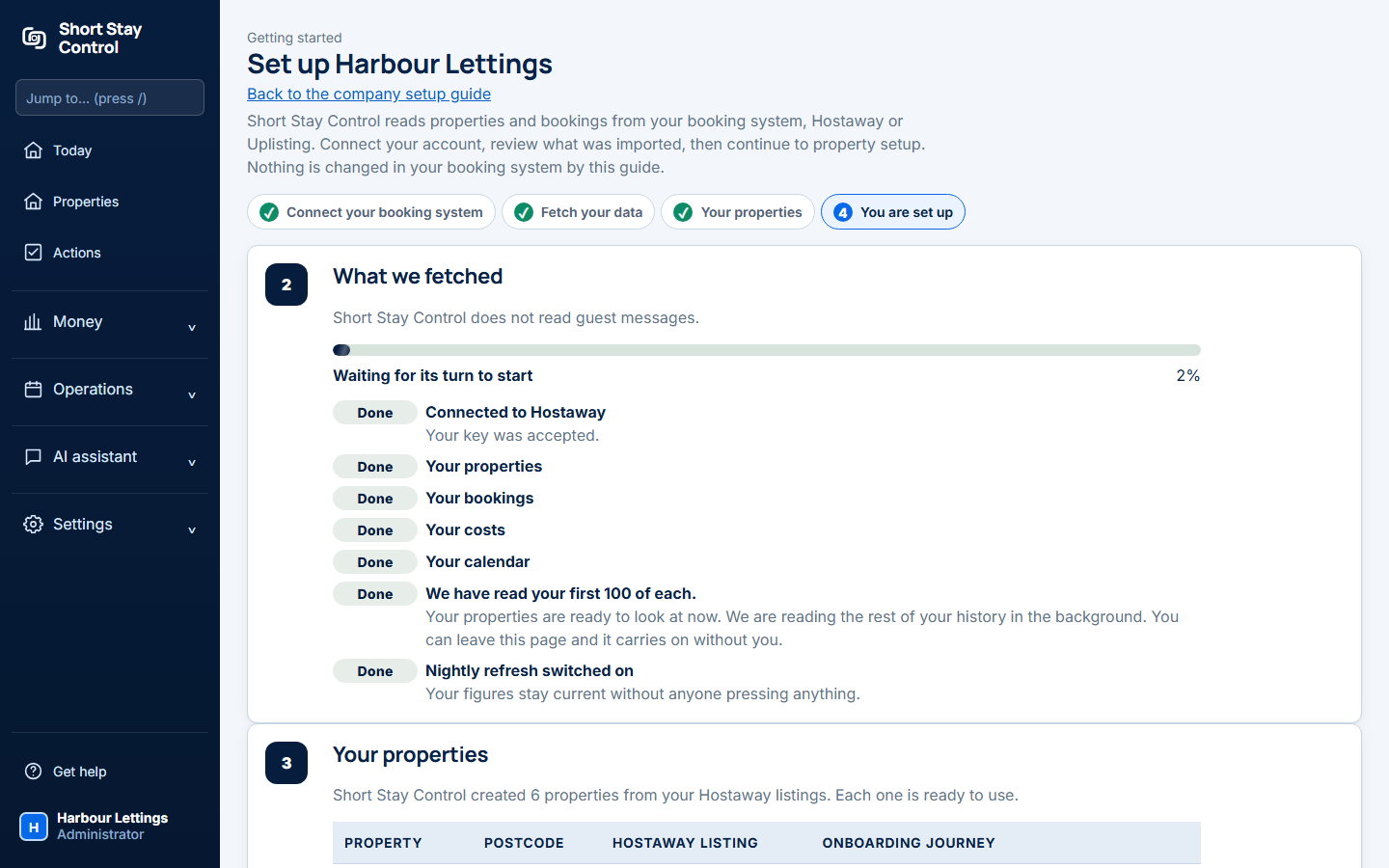
Figure 2. The first read. A progress bar shows the rest of your history arriving.
So the first read gets up to 100 records of each kind, enough to create your properties straight away. The rest of your history arrives in the background, and you can carry on. When it finishes, the last line of You are set up reads, for example, "581 bookings and 450 costs read. All of your history is now here. Nightly refreshes keep it up to date." Your numbers are not complete until then. After that, figures refresh every night, so they can be up to a day old.
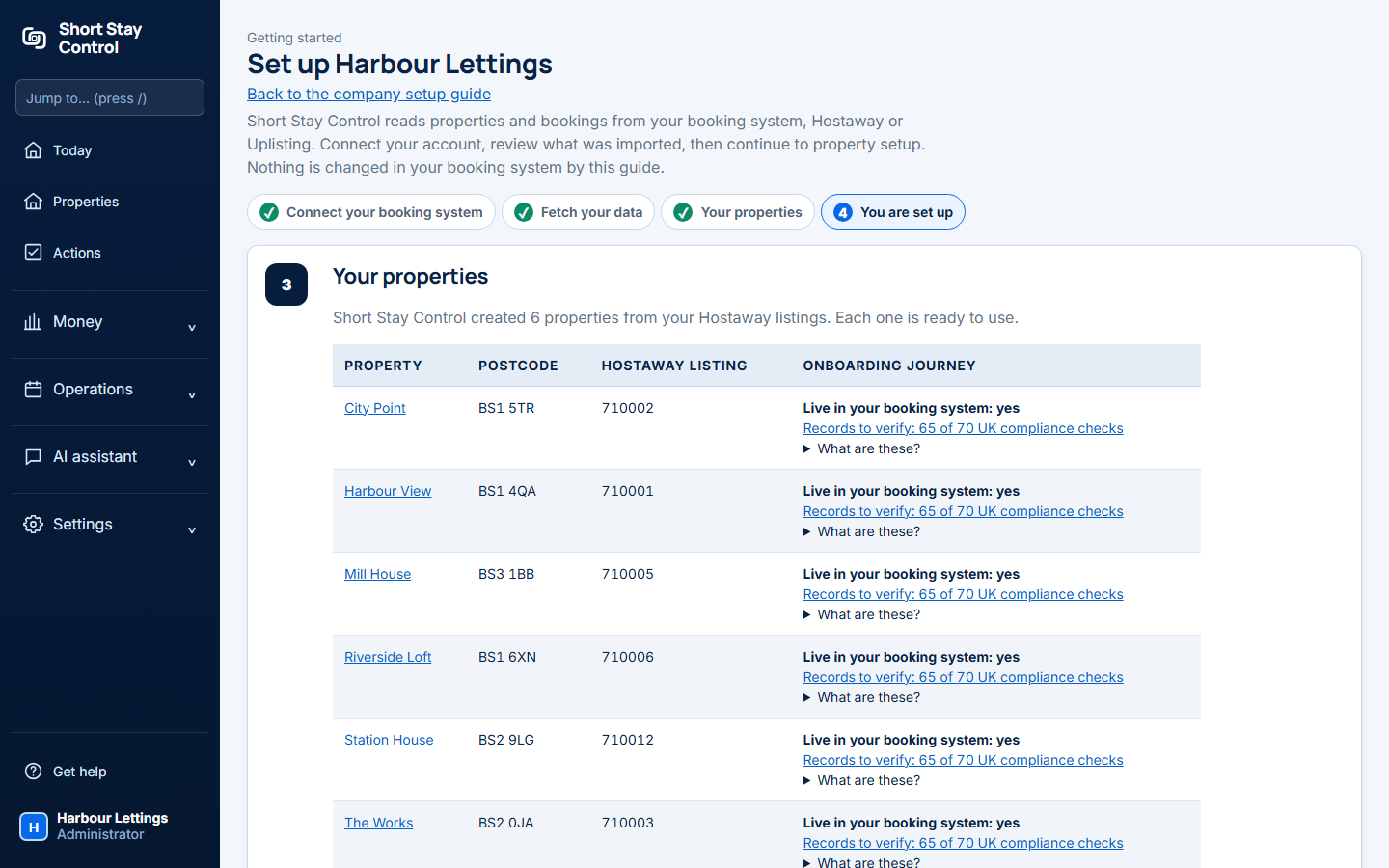
Figure 3. Properties created from Hostaway listings. The names here are invented.
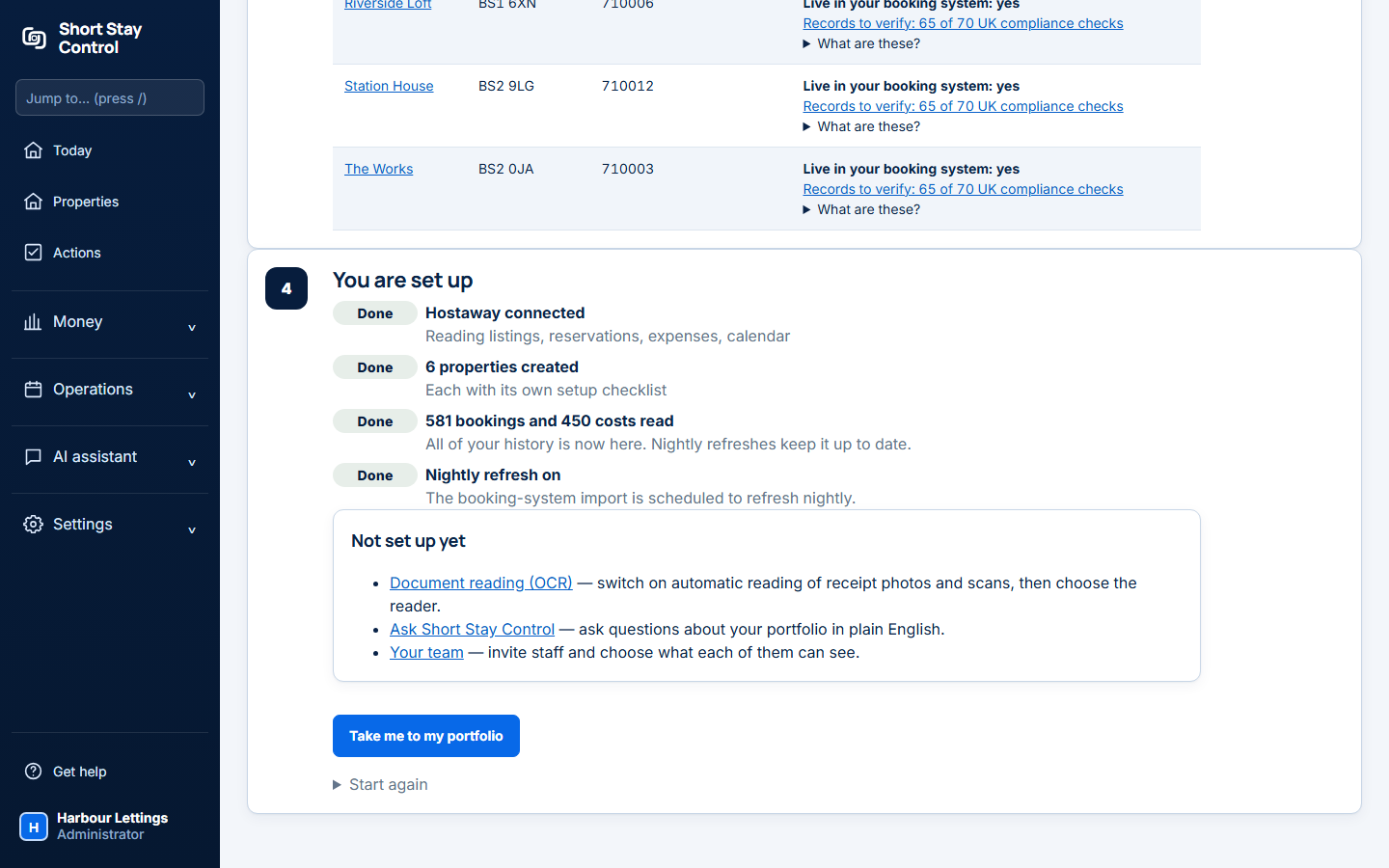
Figure 3a. The final setup step confirms the connection and background read.
Each Hostaway listing that matches clearly becomes a property. Listings that are unclear appear under Worth a look. Press Add this property on any you manage.
Check it worked
Open Settings, then Connections. Your Hostaway connection should show a green Healthy label, a recent Last sync and Key saved today. You can press Run safe test at any time. It checks the key and reads one property, and changes nothing.
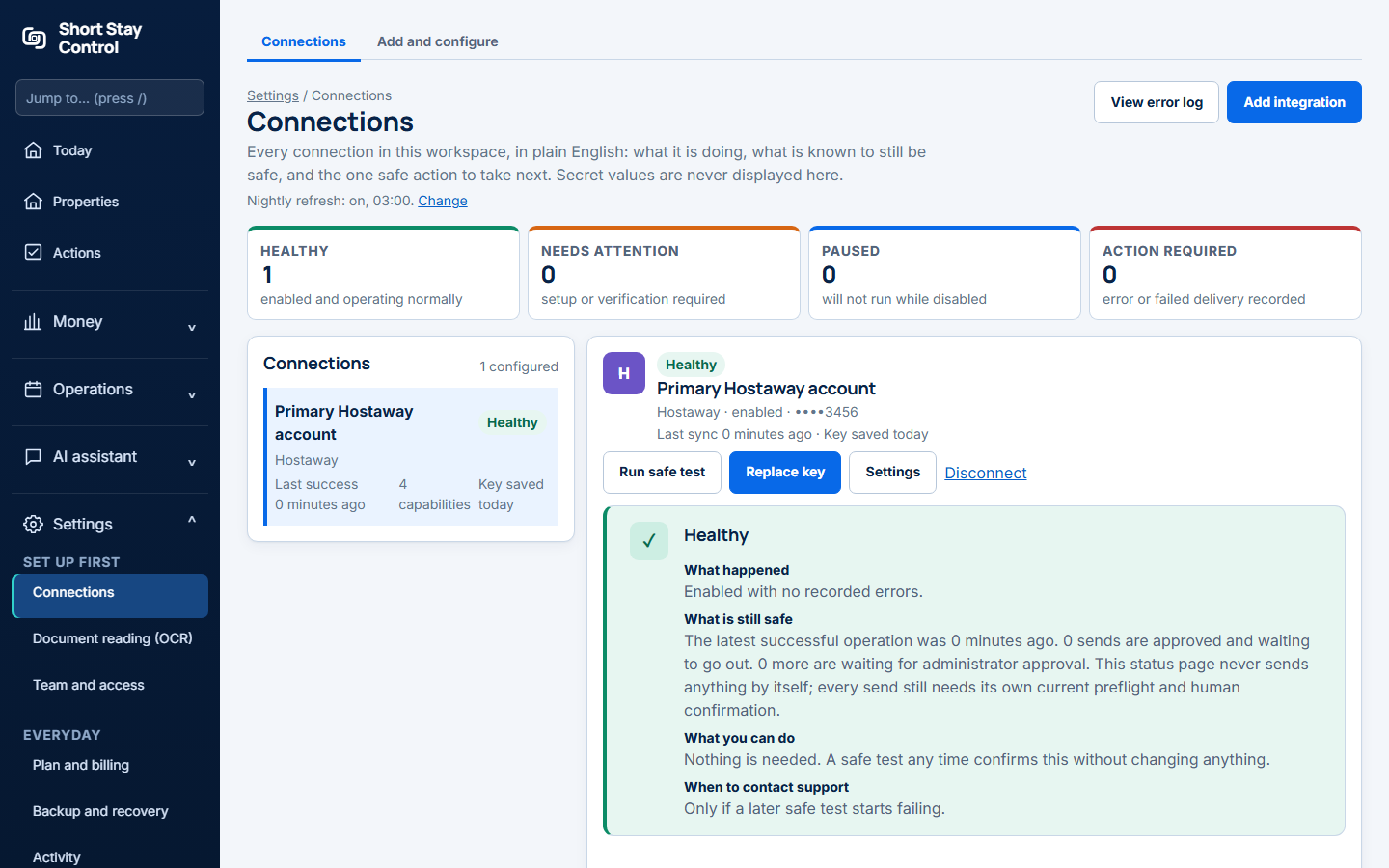
Figure 4. A healthy connection.
If something goes wrong
- "This should be a number, like 123456. It is shown next to your API key in Hostaway." The Account ID box takes 4 to 10 digits only. Your browser may have filled in an email address, or a space or letter was pasted. Copy the Account ID again. Some browsers show their own message first, such as "Please match the requested format."
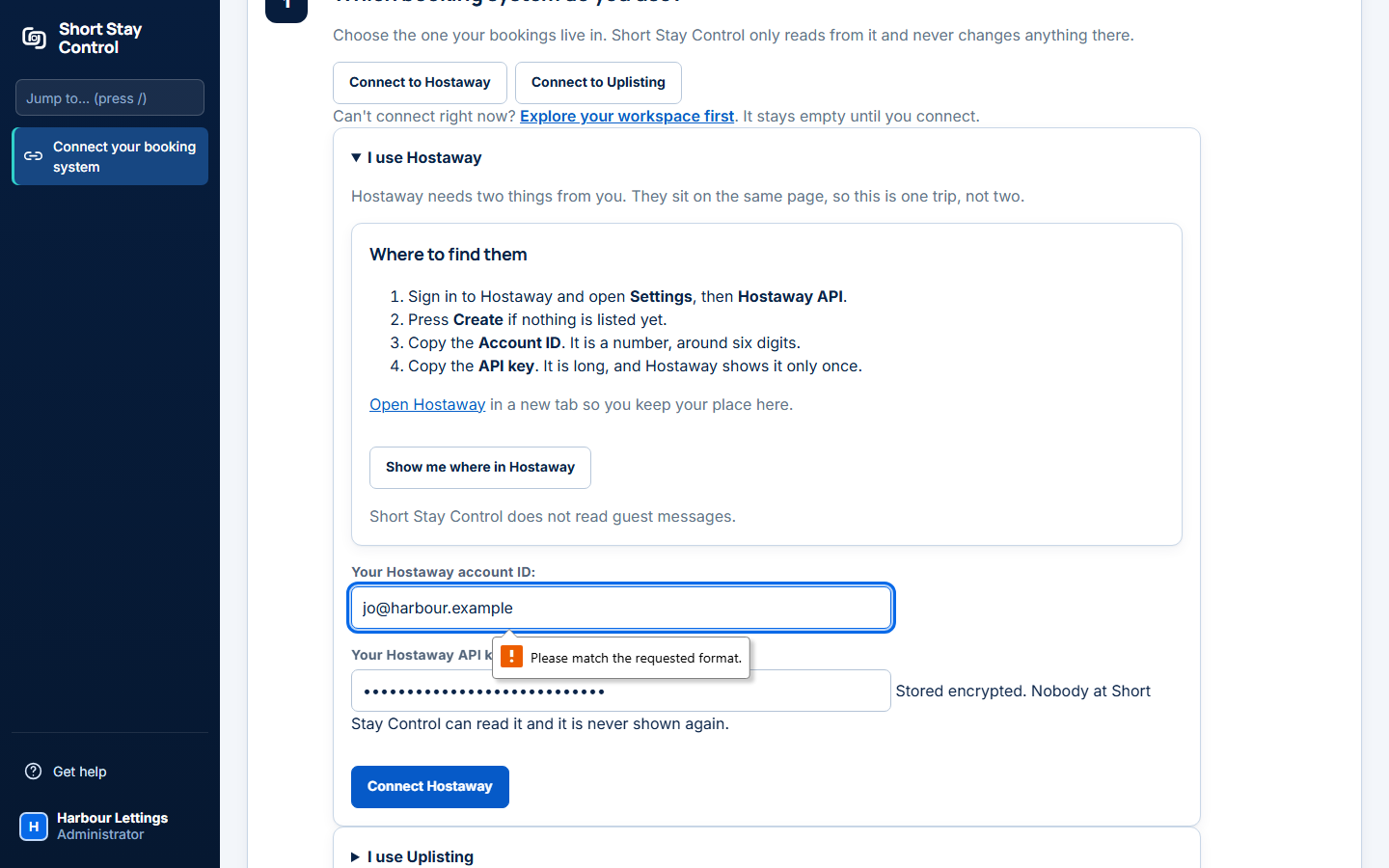
- "Hostaway did not accept these details." The explanation says: "Hostaway refused the sign-in, so nothing was imported. Either the API key or the account ID is wrong, or the key has been deleted in Hostaway. We cannot tell which from here. In Hostaway, open Settings, then Hostaway API, and copy both again." Check both come from the same row on the Hostaway API page. If in doubt, create a new key and paste both again. Your details stay saved, so you only need to correct them.
- "Hostaway is busy right now." "Hostaway asked us to slow down and was still busy after we waited. Your details are fine. Nothing was imported. Try again in a minute."
- "We could not reach Hostaway." "Hostaway did not answer properly, so nothing was imported. This is usually a short problem at Hostaway. Your details are fine. Try again in a few minutes."
- "Hostaway sent a reply we did not expect." "Try again in a few minutes. If it happens again, contact Short Stay Control support."
- "Your Hostaway account did not return this. Everything else came through." Hostaway refused one optional part, for example costs. The rest works.
- "Hostaway did not return any readable datasets." The key signed in but cannot read properties, bookings or costs. Create a new key in Hostaway and try again.
- "This workspace already reads its bookings from Uplisting. A workspace uses one booking system, so Hostaway cannot be added here." Disconnect Uplisting first, or use a separate workspace.
Never send your API key to anyone, including us. If you need help, use Get help and quote the exact message and the time.
Related
[Connect Uplisting](03-connect-uplisting.md) · [Getting started](01-getting-started.md)