
Help guides · Getting started
Connect Uplisting
- For
- Owners and administrators
- Booking system
- Uplisting
- Last checked
Short Stay Control reads your properties, bookings and calendar from Uplisting. It only reads. It does not change anything in Uplisting. Background reading can continue after you leave the page.
You need an Uplisting account where you can open Settings, and to be an administrator of your Short Stay Control workspace. Uplisting needs one thing from you: an API key (application programming interface key, a long password that lets one program read from another).
Steps
- Sign in to Uplisting and open Settings, bottom left.
- Choose Connect, then API Key under "Sync data from Uplisting".
- Press Copy API key.
- In Short Stay Control, on Connect {your workspace name} to your booking system, open I use Uplisting. If it is closed, press Connect to Uplisting first.
- Paste the key into Your Uplisting API key.
- Press Connect Uplisting.
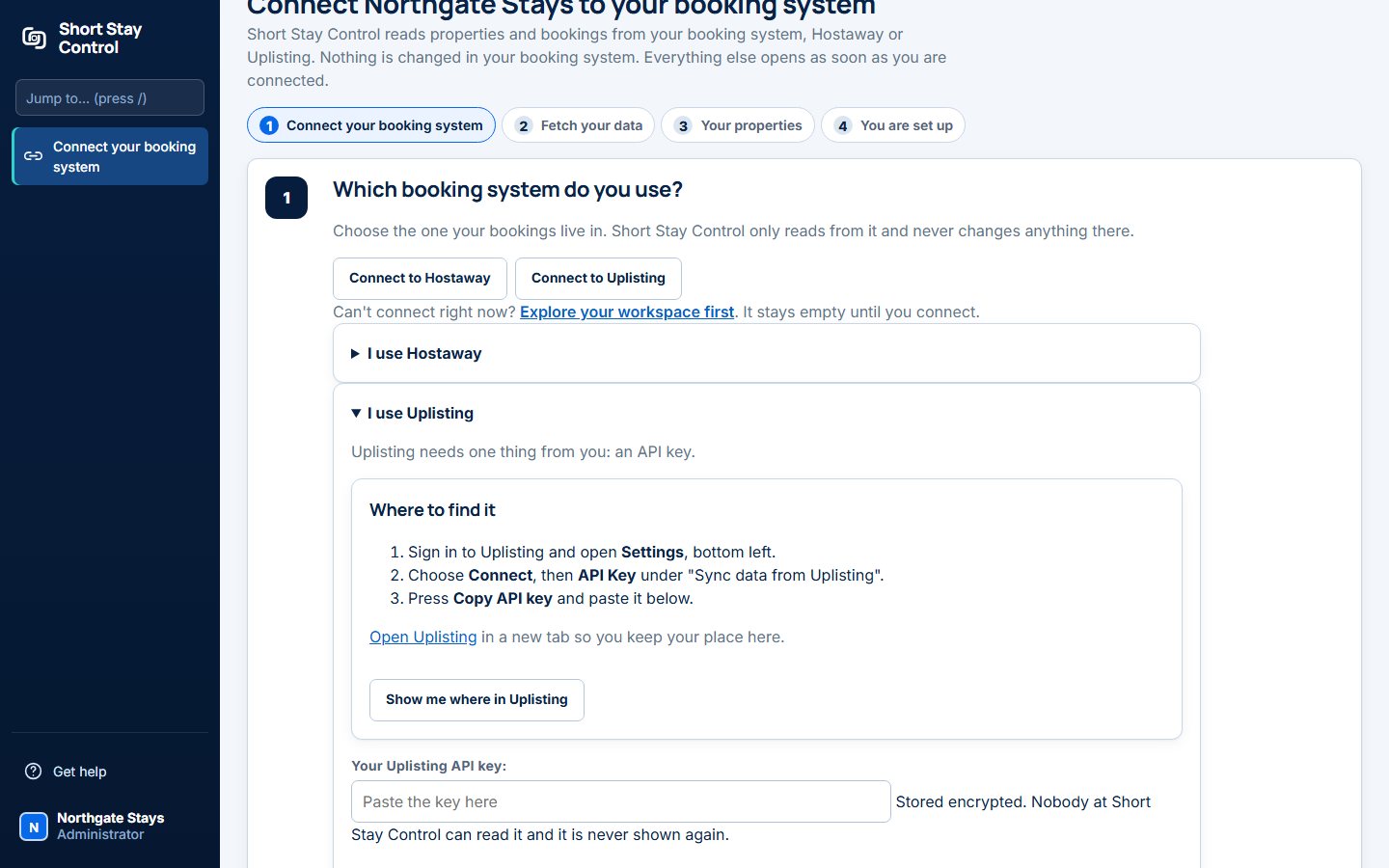
Figure 1. The Uplisting section, with the "Where to find it" steps.
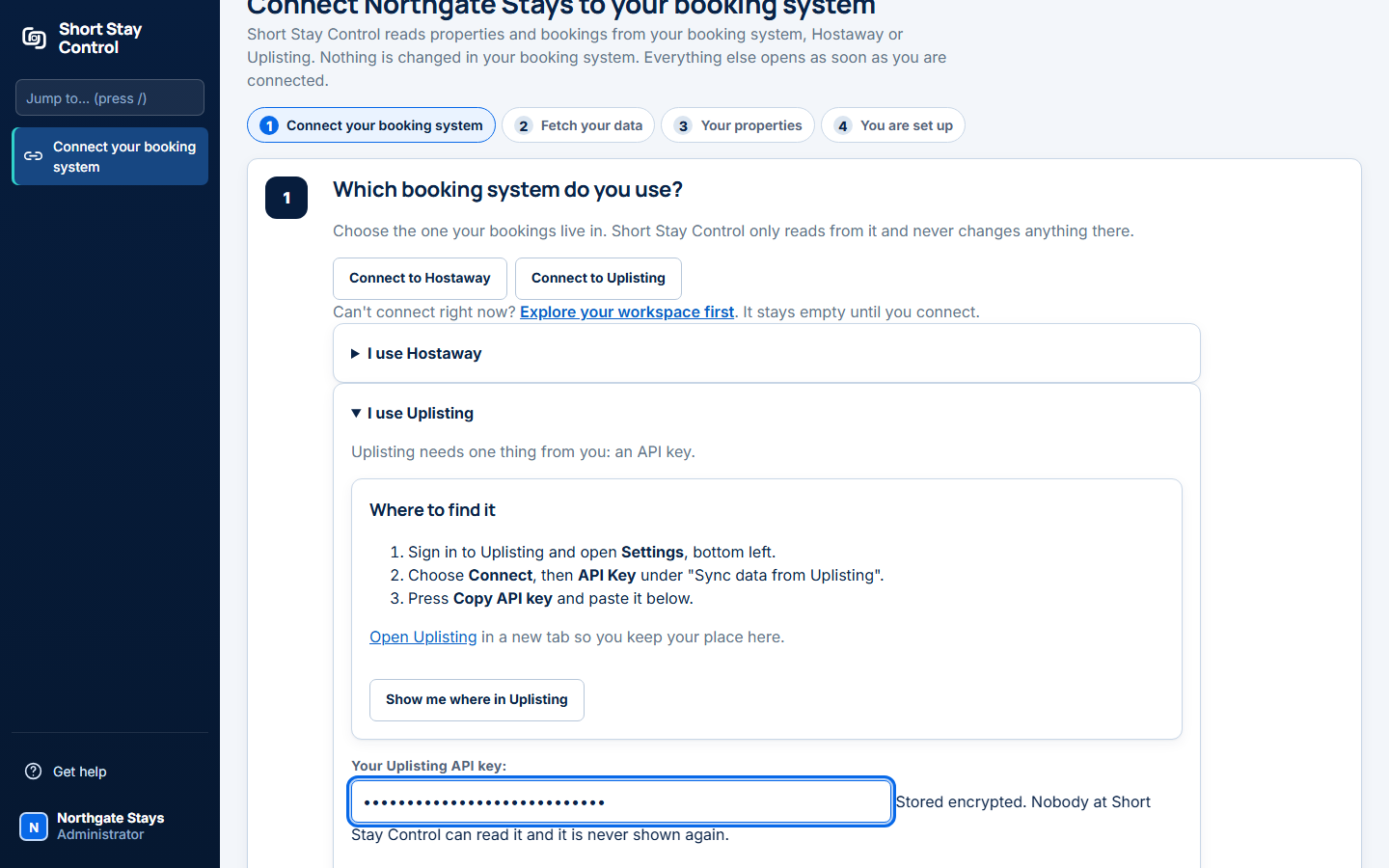
Figure 2. The key box filled in (a practice value, shown as dots).
The key is stored encrypted. Nobody at Short Stay Control can read it and it is never shown again. To see where things are in Uplisting, press Show me where in Uplisting.
What you will see
If Uplisting accepts the key, Set up {your workspace name} shows Fetching from Uplisting and tells you, for example, "Connected to Uplisting. Your key was accepted and 4 properties were found." Then Fetching your bookings and calendar says: "This carries on in the background. Your properties appear here when it finishes." Last, Nightly refresh switched on.
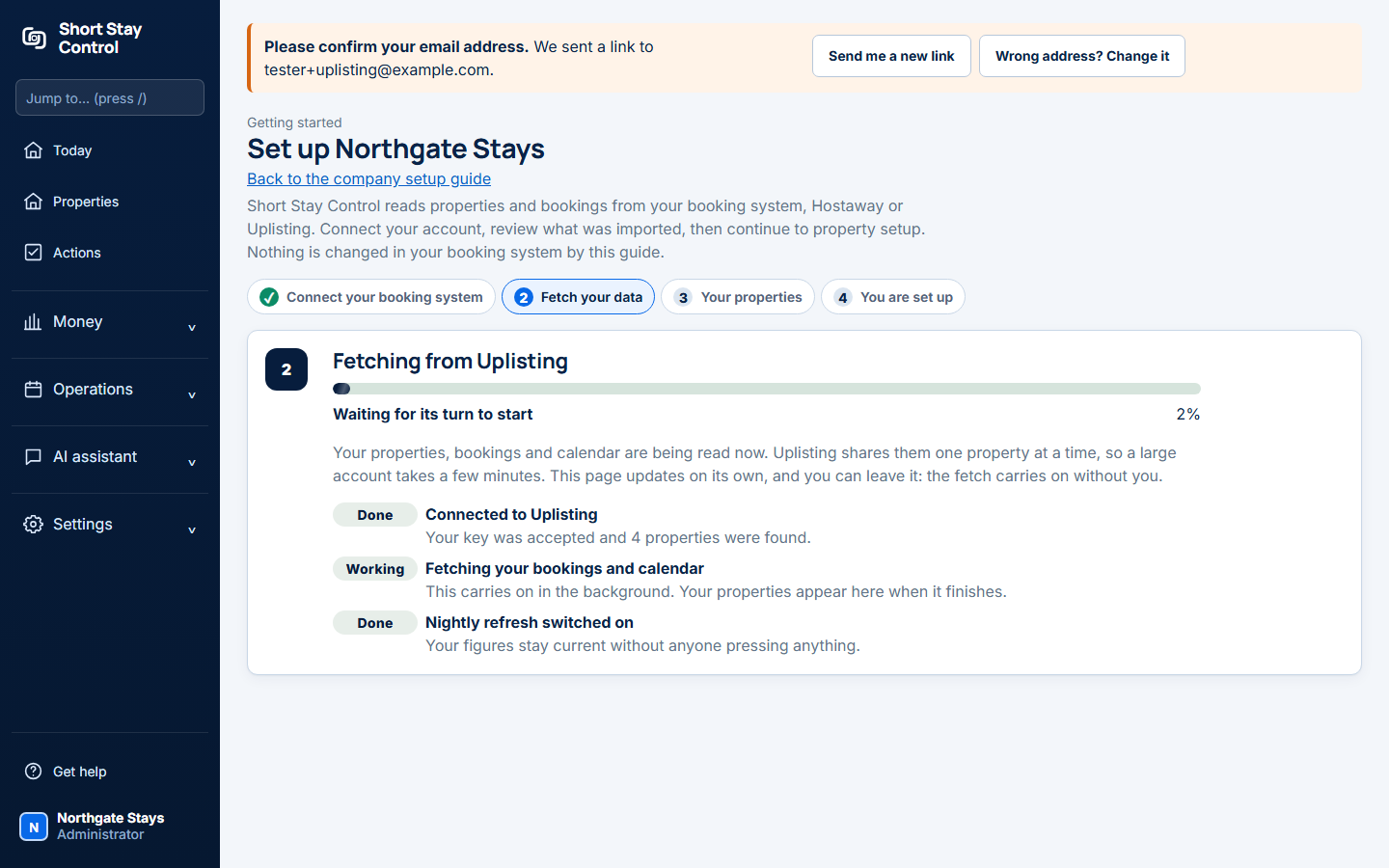
Figure 3. The fetch runs in the background.
Uplisting shares its figures one property at a time, so a large account takes a few minutes. This page updates on its own, and you can leave it: the fetch carries on without you. Uplisting does not share costs, so you add costs in Short Stay Control from receipts.
When the fetch finishes you see Your properties: "Short Stay Control created 4 properties from your Uplisting listings. Each one is ready to use."
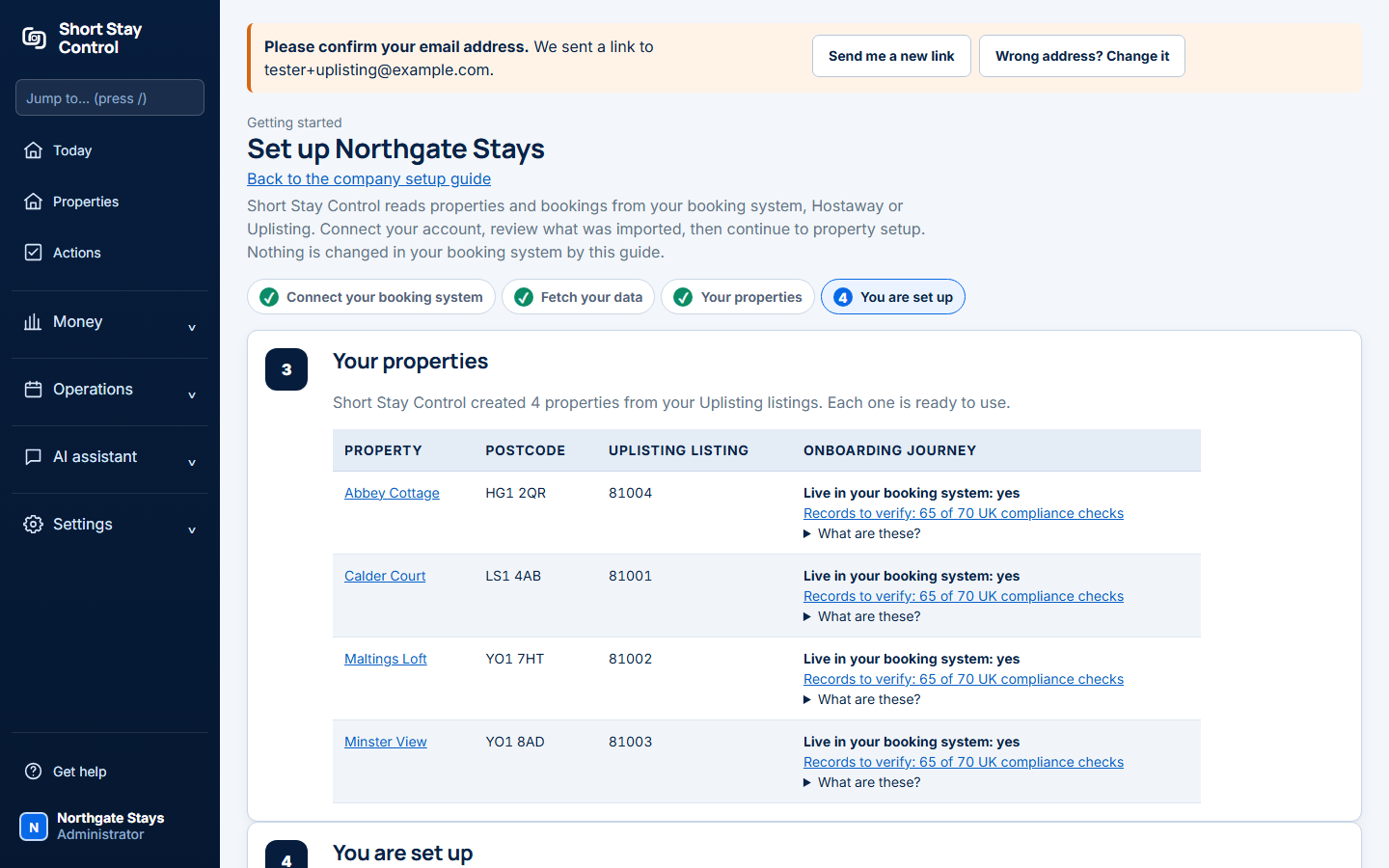
Figure 4. Properties created from Uplisting listings. The names are invented.
Check it worked
Open Settings, then Connections. Your Uplisting connection should show Healthy, a recent Last sync and Key saved today. Press Run safe test at any time to check the key without changing anything.
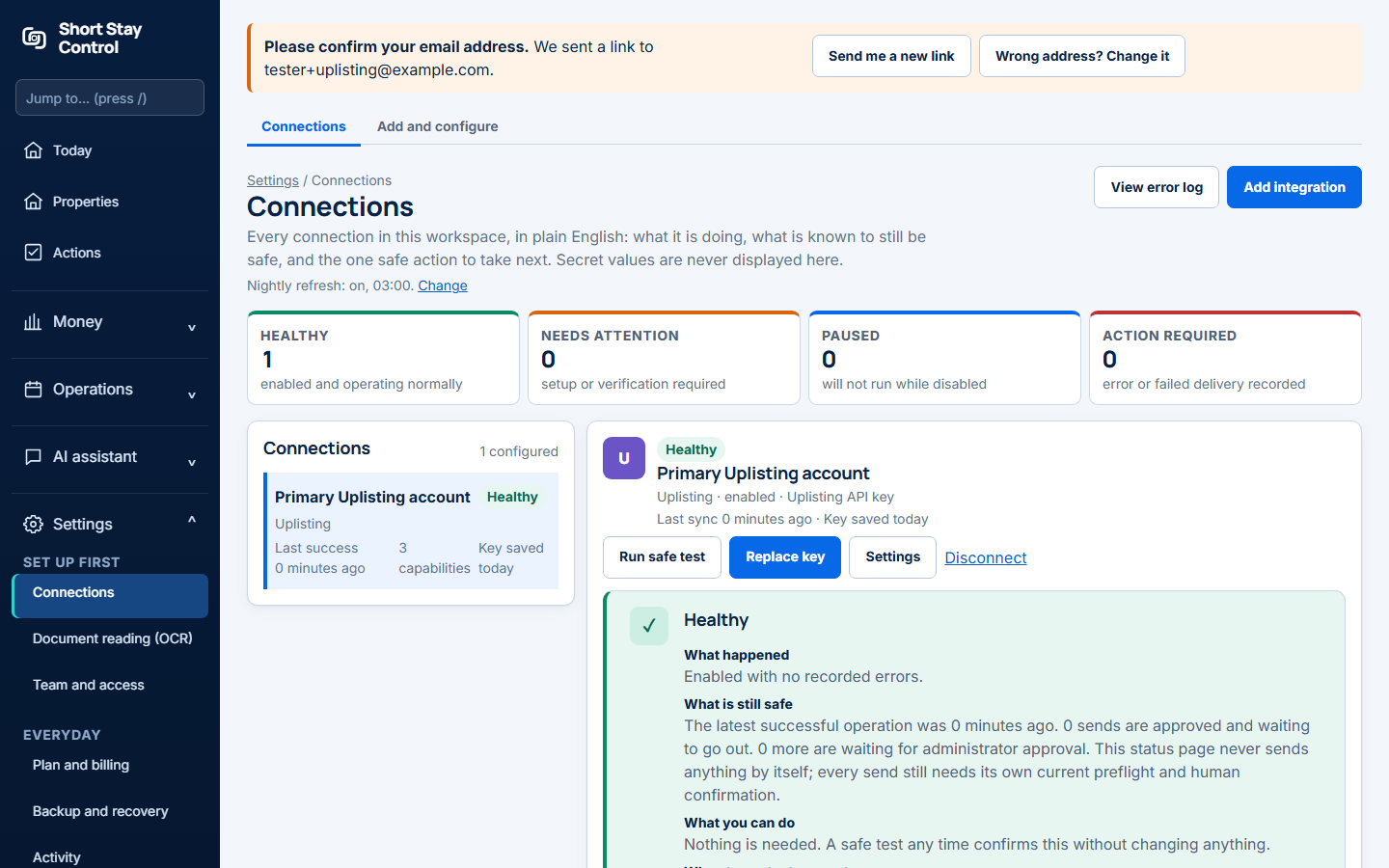
Figure 5. A healthy Uplisting connection.
To read everything again later, open Connections, choose the connection and press Refresh recent bookings (the last 90 days and the year ahead) or Fetch everything again (three years, one property at a time, which can take several minutes).
If something goes wrong
- "Uplisting did not accept this API key. Create a new key in Uplisting under Connect, then API, and paste it again." The key was wrong or has been replaced. Copy it again from Uplisting.
- "Paste the Uplisting API key first." The box was empty.
- "Uplisting accepted this key, but the account it belongs to has no properties. Check it is the key for the account your properties are in, then paste that one." You may have more than one Uplisting account. Use the key from the one that holds your properties.
- "Uplisting could not be reached. Nothing was changed; the next refresh will try again." A short network or Uplisting problem. Check the connection status after the next refresh.
- "Uplisting asked Short Stay Control to slow down and kept refusing. The next refresh will try again." Uplisting limits how fast it answers. Wait and try again.
- "The fetch stopped" with a Fetch again button. Your key was accepted, so there is nothing to paste again. Press Fetch again. Anything already fetched is kept.
- "This workspace already reads its bookings from Hostaway. A workspace uses one booking system, so Uplisting cannot be added here." Disconnect Hostaway first, or use a separate workspace.
Never send your API key to anyone, including us. If you need help, use Get help and quote the exact message and the time.
Related
[Connect Hostaway](02-connect-hostaway.md) · [Getting started](01-getting-started.md)