
Help guides · Connecting your booking system
Check your booking system connection
- For
- Owners and administrators, Operations managers
- Booking system
- Hostaway and Uplisting
- Last checked
Use Connections to see whether Short Stay Control can still read from Hostaway or Uplisting and when it last did so.
Steps
- Open Settings, then Connections.
- Find your booking system and check its status and Last sync.
- Select Run safe test if you need to check the saved key. The test reads a small amount of data and does not change the booking system.
- If the connection needs a new key, follow [Replace a key](06-replace-a-key.md). If you are leaving that booking system, see [Disconnect](07-disconnect.md).
Operations managers, office managers and management read-only members with integration viewing can open a shared Connections link, but their menu has no Connections entry. Only administrators can manage a connection.
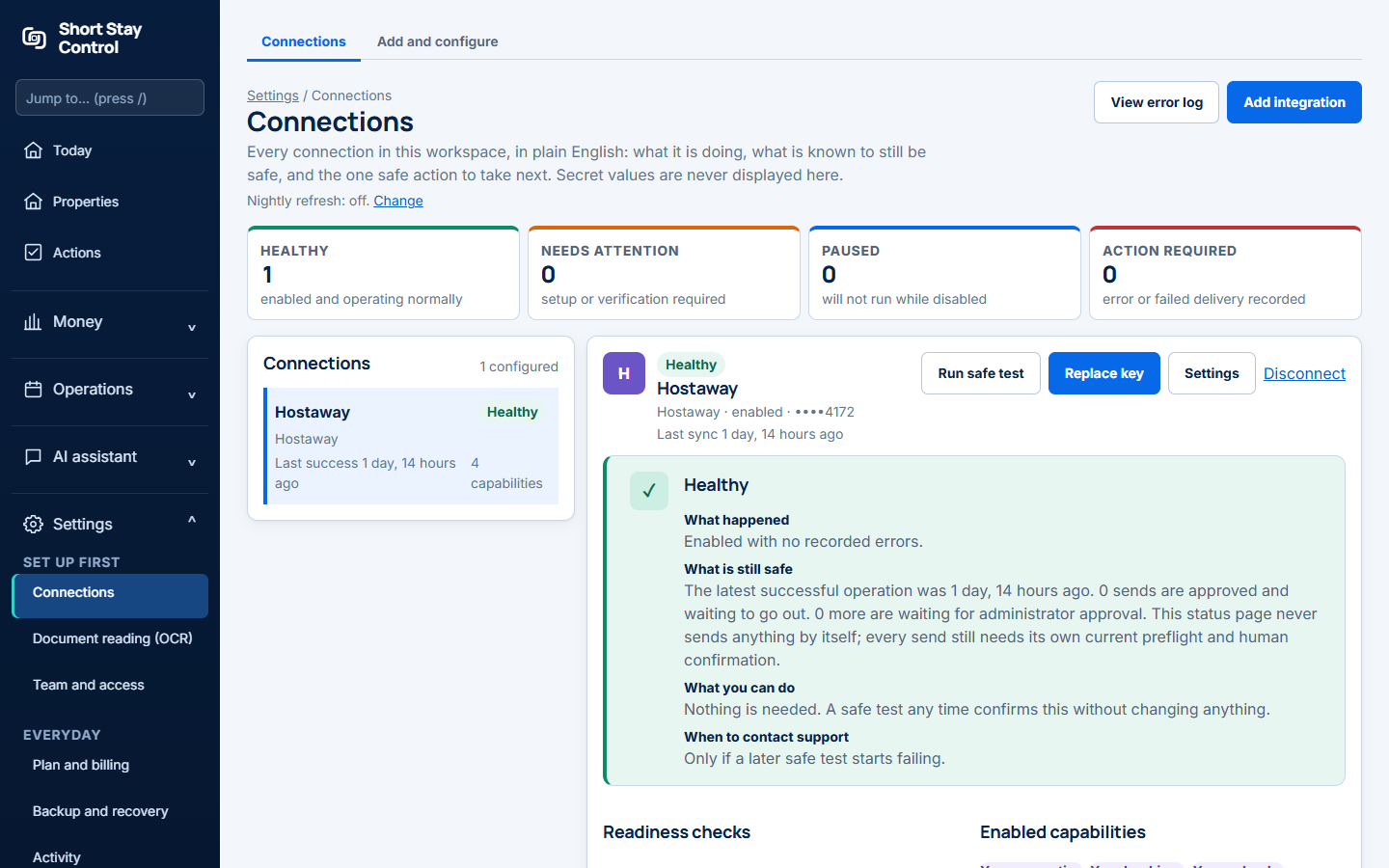
Figure 1. The Connections page in a demonstration workspace. Its Hostaway connection is a simulation.
What you will see
A working connection shows Healthy, a Last sync time and when its key was saved. Uplisting lets an administrator choose Refresh recent bookings or Fetch everything again. A workspace uses one booking system for its bookings. Only administrators can manage the connection; operations managers and office managers can view connection status if their role allows integration viewing.
If something goes wrong
- "We could not reach Hostaway." Check the connection status and use Run safe test later. The saved details can still be correct.
- "Uplisting could not be reached. Nothing was changed; the next refresh will try again." Wait and use Run safe test later.
- "This workspace already reads its bookings from Hostaway. A workspace uses one booking system, so Uplisting cannot be added here." Disconnect Hostaway before connecting Uplisting, or use a separate workspace.
Never paste a booking system key into Get help.