
Help guides · Connecting your booking system
Disconnect a booking system
- For
- Owners and administrators
- Booking system
- Hostaway and Uplisting
- Last checked
Disconnecting stops future imports and deletes the saved key. The data already imported stays in your workspace.
Steps
- Open Settings, then Connections.
- Select the Hostaway or Uplisting connection.
- Choose Disconnect and read the confirmation page.
- Press Disconnect and keep my data only when you are ready for refreshes to stop.
- Return to Connections to check the disconnected status.
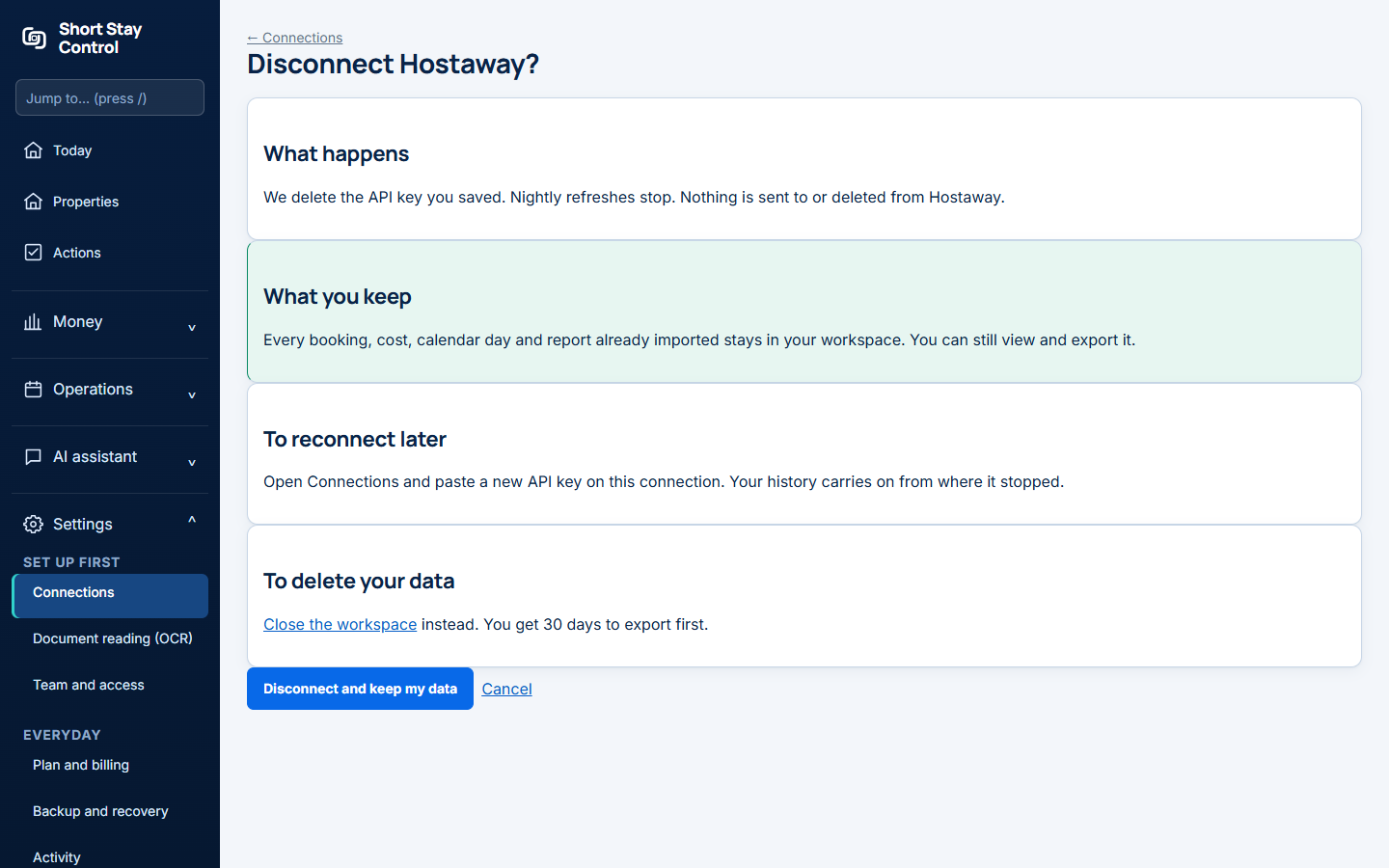
Figure 1. The disconnect link on a simulated Hostaway connection.
What you will see
The confirmation says what will stop and what is kept. After disconnecting, the page reports "Disconnected. Your saved key is deleted and refreshes have stopped. Your imported data is still here." You can reconnect later with a current key. Only administrators can disconnect a provider.
If something goes wrong
- If the page still shows Healthy, check whether you confirmed the disconnect or merely opened the confirmation page.
- If you need a fresh import after reconnecting, use the connection's import controls. Old imported data was kept and does not need to be restored.
- If you meant to replace an expired key without stopping imports permanently, follow [Replace a key](06-replace-a-key.md).