
Help guides · Settings
Change email and sign-in settings
- For
- Owners and administrators, Operations managers, Office managers, Finance, Facilities coordinators, Management read-only
- Booking system
- Hostaway and Uplisting
- Last checked
Use Email settings in your account menu to change notification choices, request a sign-in email change and manage your own two-step sign-in.
Steps
- Open your account menu, then Email settings.
- Choose which optional account and operational emails you want and press Save email settings.
- To change your sign-in address, enter the new address and your current password, then press Send confirmation to new email.
- Open the message sent to the new address to complete the change.
- If you use two-step sign-in, keep your recovery codes safe. You can make new codes here; the old ones stop working.
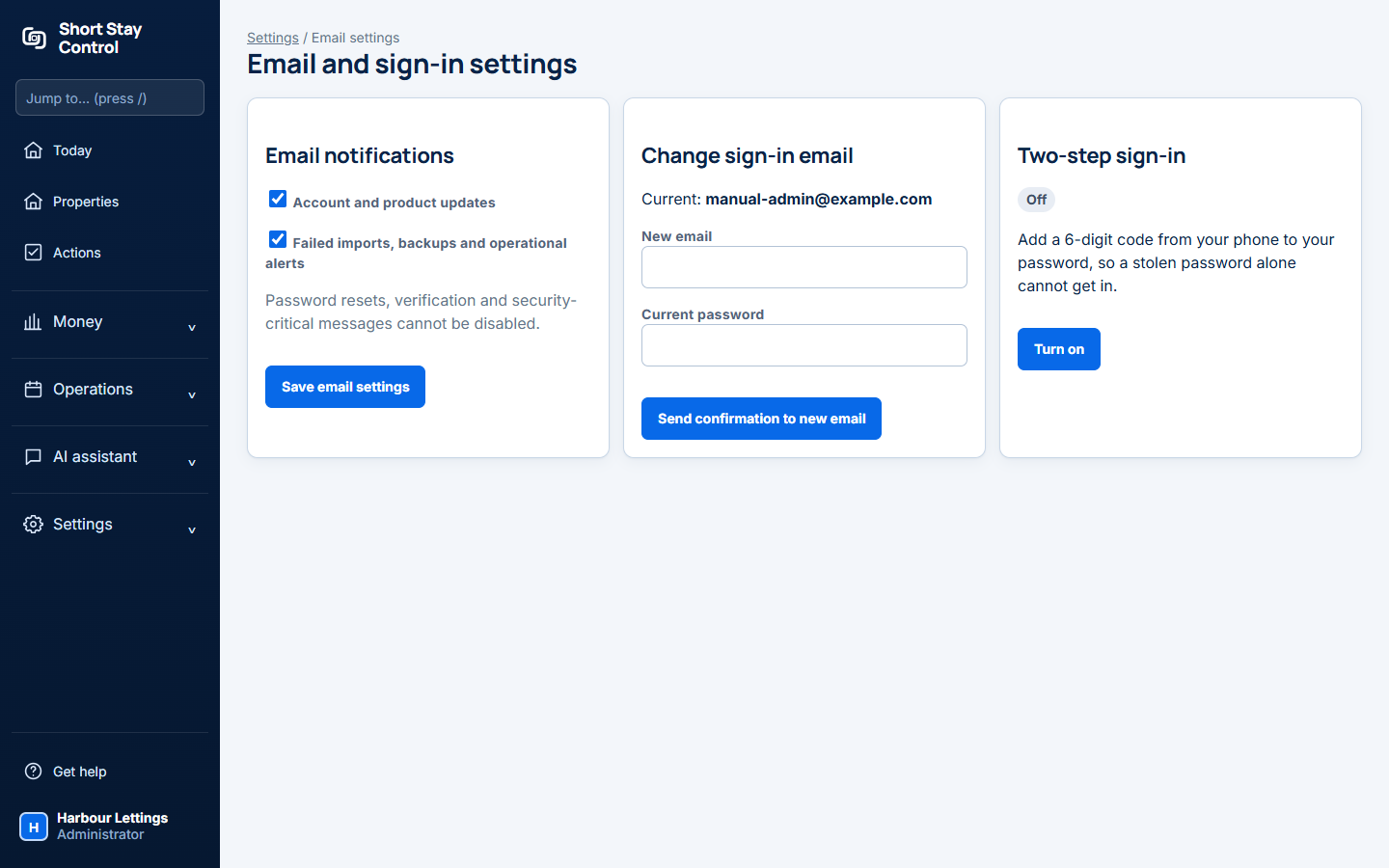
Figure 1. Settings for a local example.com account.
What you will see
Password resets, verification and security messages cannot be switched off. Two-step sign-in asks for a six-digit code after your password. Administrators must use it. A team administrator can reset someone else's two-step sign-in from Team and access if they lose both their phone and recovery codes.
If something goes wrong
- "Check the new address and follow its confirmation link. Your current sign-in remains unchanged until then." Check the new inbox.
- "Make ten new recovery codes? The old ones stop working." Save the replacement codes before leaving the page.
- If you cannot sign in, use Forgotten your password? on the sign-in page. Another administrator can reset your two-step sign-in; an administrator cannot reset their own. If no one can sign in to help, email support@shortstaycontrol.com.