
Help guides · Getting help
Ask support for help
- For
- Owners and administrators, Operations managers, Office managers, Finance, Facilities coordinators, Management read-only
- Booking system
- Hostaway and Uplisting
- Last checked
Use Get help when a screen does not work, a figure looks wrong or you need a person to review an account question.
Steps
- Open Help guides from the menu if you want to check a short illustrated guide first. To ask a person, open Get help and check the Look it up first panel.
- Choose the closest topic and describe what happened. Put an urgent payment or sign-in problem in the first line.
- Decide whether to tick the box allowing support to look inside your workspace. The page explains what is sent either way.
- Press Send to support.
- Check Your requests for its status and watch for the email reply. Open the request to read the conversation. Use Send reply to add information, or That solved it when the question is resolved.
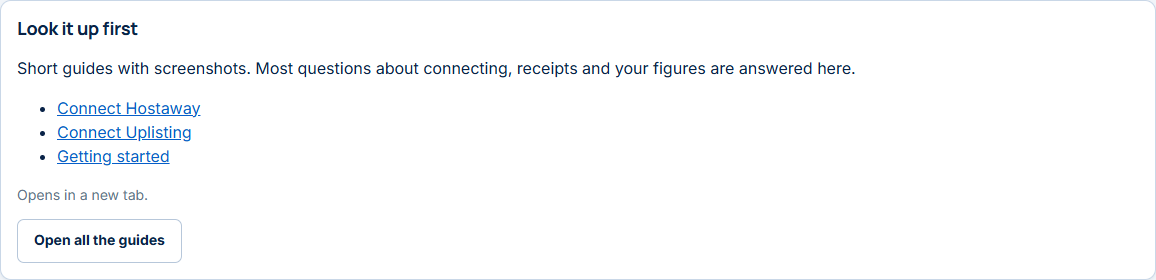
Figure 1. The guide links on the signed-in help page.
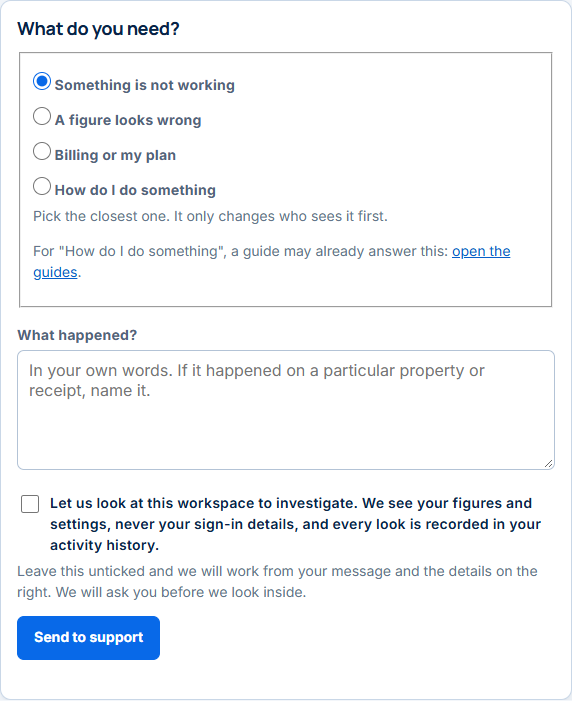
Figure 2. The support form in a local workspace containing invented data. Nothing was submitted.
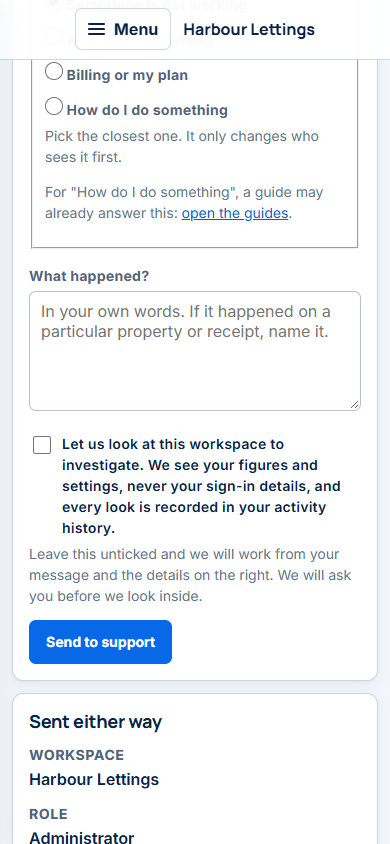
Figure 3. The same local help form at phone width.
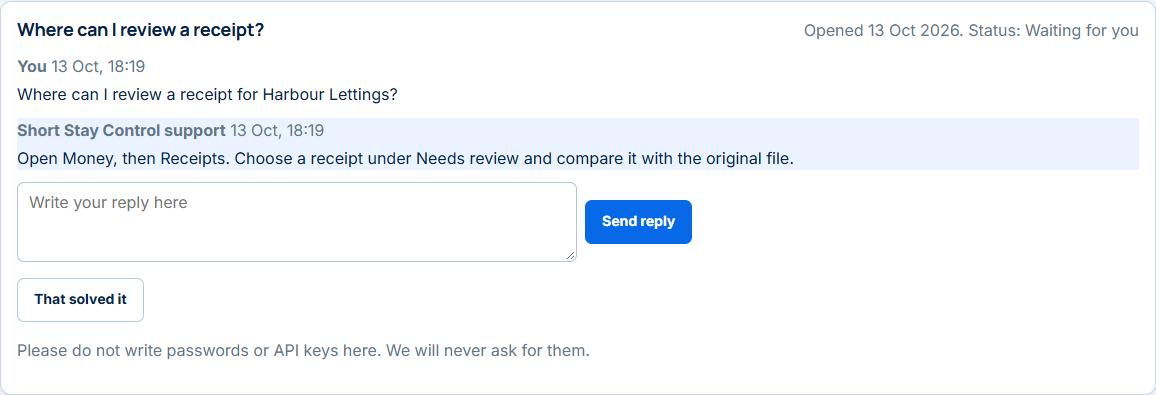
Figure 4. A local example conversation. Both messages were invented for this guide.
What you will see
The page already knows the workspace and screen you were using. For some problem topics it attaches relevant failure evidence even when you do not permit a closer look. The separate consent box allows a support person to inspect figures and settings; every look is recorded. Your requests lists each conversation as With support, Waiting for you, Answered or With a person. A request row marked New reply from our team has a response for you to read. The connect guides in Look it up first match your booking system.
If something goes wrong
- "Your request is with us" means the form was saved and a reply will come by email.
- "Write something before you send a reply." Add a message to the conversation and press Send reply again.
- In a demonstration workspace, "support requests are not sent from here." Use Book a review there; use your customer workspace for a support request.
- If you cannot sign in, email support@shortstaycontrol.com instead of using this signed-in page.
- Never include an application programming interface key, password, recovery code or card number in the message.