
Help guides · Getting started
Getting started
- For
- Owners and administrators
- Booking system
- Hostaway and Uplisting
- Last checked
This guide takes you from the sign-up page to a signed-in workspace that is ready to connect to your booking system. You need a phone with an authenticator app (an app that shows a new six-digit code every 30 seconds), such as Google Authenticator, Microsoft Authenticator or 1Password.
1. Start the free trial
- Open https://app.shortstaycontrol.com/signup/.
- Under How many properties do you run?, type a number or use the plus and minus buttons.
- Under Which booking system is your live account on?, choose Hostaway or Uplisting.
- Fill in Your name, Work email and Business name.
- Tick the box that starts "I agree to the service terms and privacy notice".
- Press Start my free trial. The next screen is Stripe, our payment provider, where you add a card.
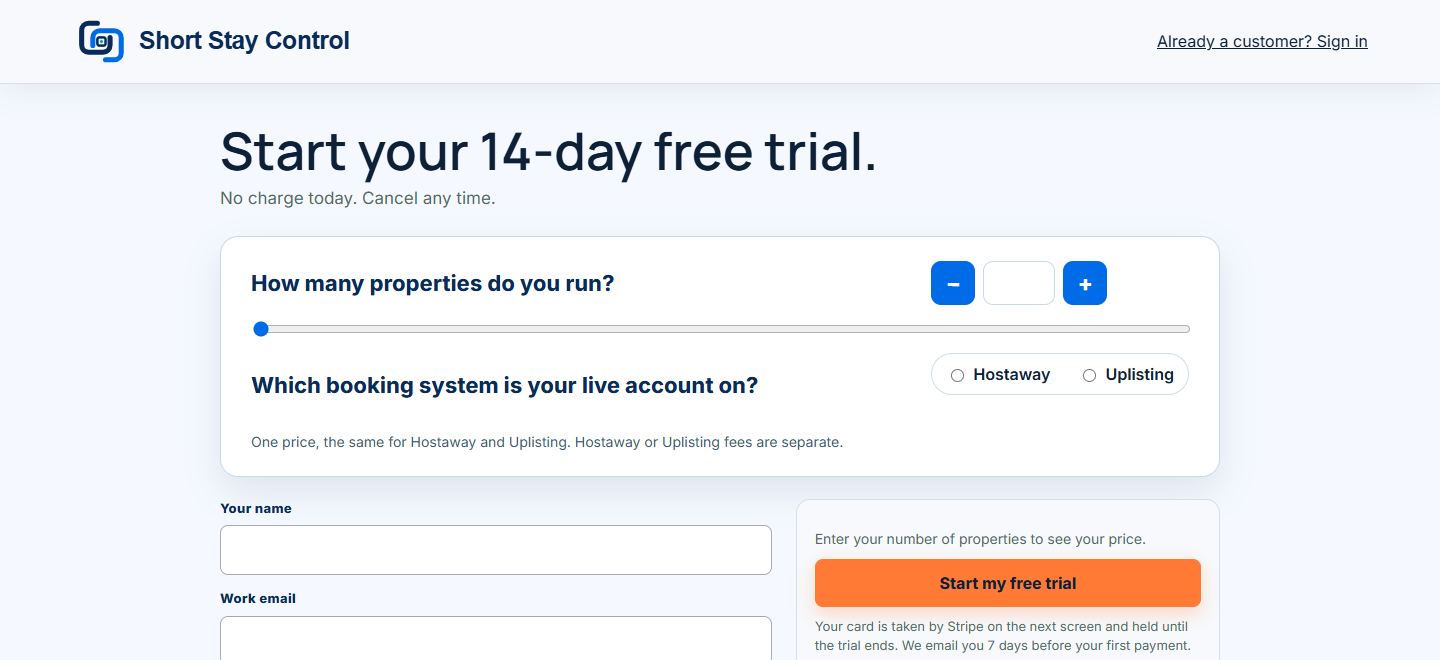
Figure 1. The sign-up page in a local test environment. No card details were entered.
What you will see: "Start your 14-day free trial. No charge today. Cancel any time." Your card is held by Stripe until the trial ends, and we email you 7 days before your first payment. Hostaway or Uplisting fees are separate.
2. Choose a password from the email
You are not asked for a password on the sign-up page. Instead we send you an email titled Your Short Stay Control workspace is ready.
- Open the email and press Confirm your email and choose a password. The link works for 7 days.
- Press Confirm my email on the page that opens.
- Under Choose your password, type a password twice. It must be at least 8 characters, not too like your other details, not a commonly used password and not only numbers.
- Press Save and open my workspace. This page works once, for 30 minutes.
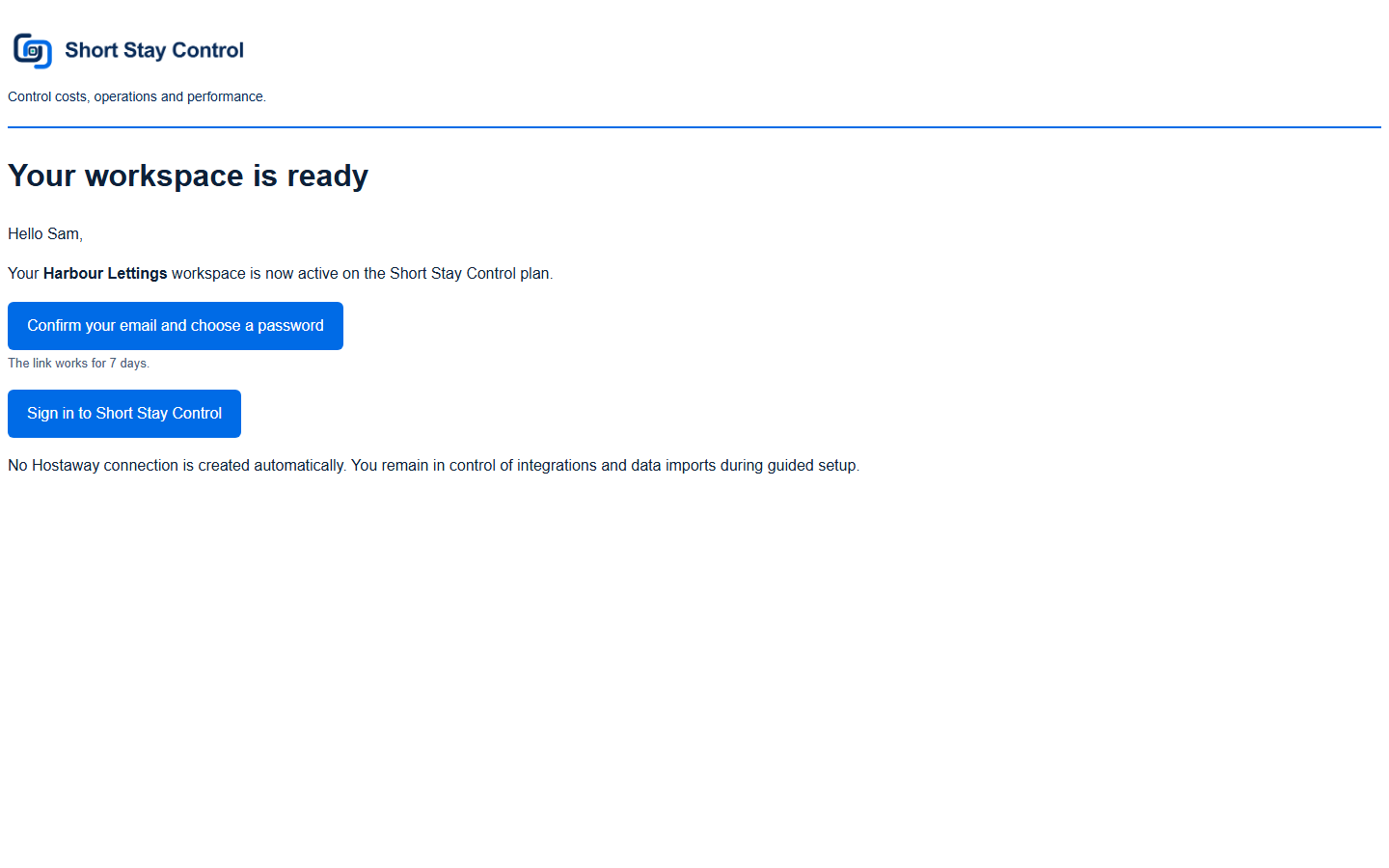
Figure 2. The email that carries your link.
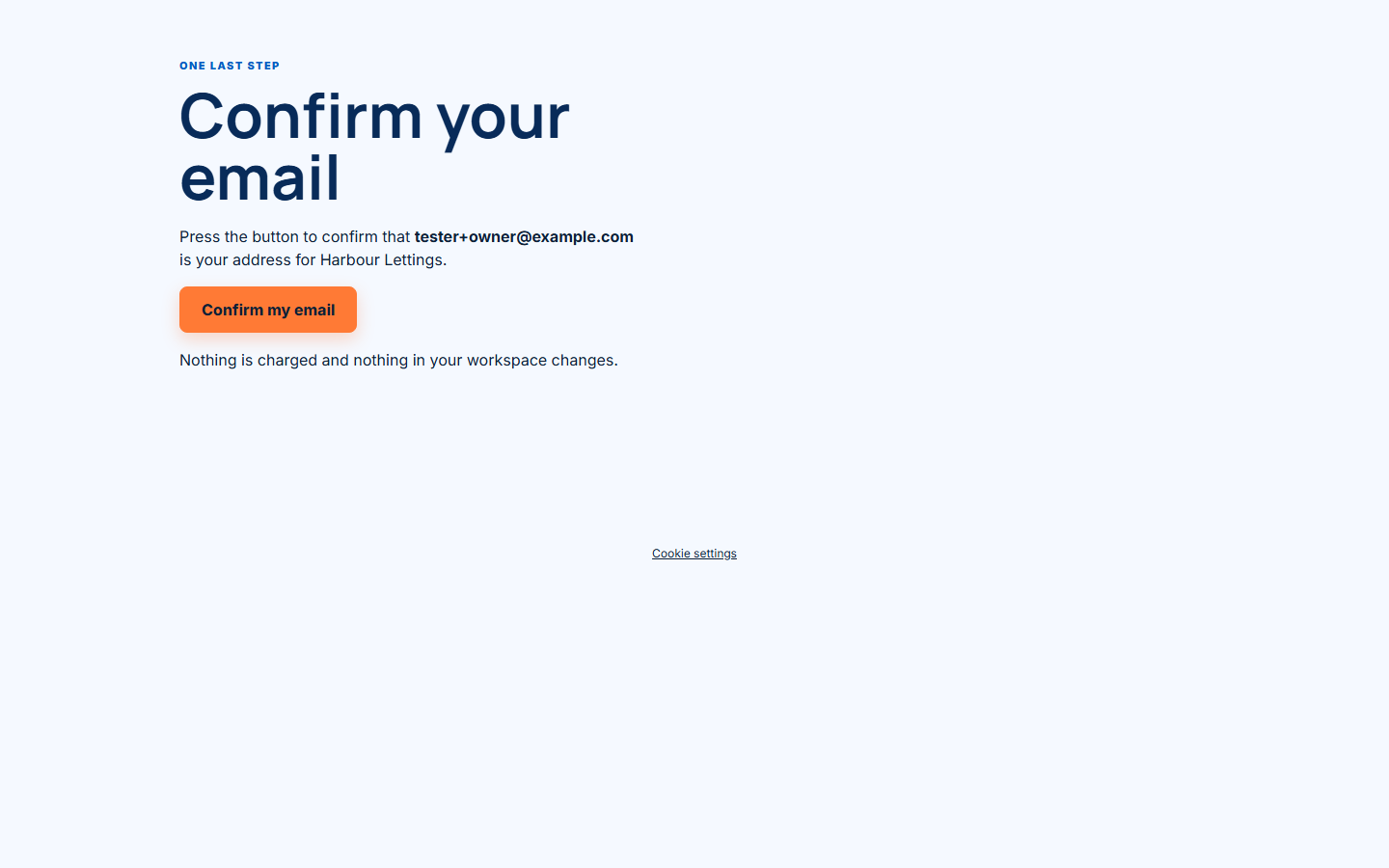
Figure 2a. Confirm the example.com address before choosing a password.
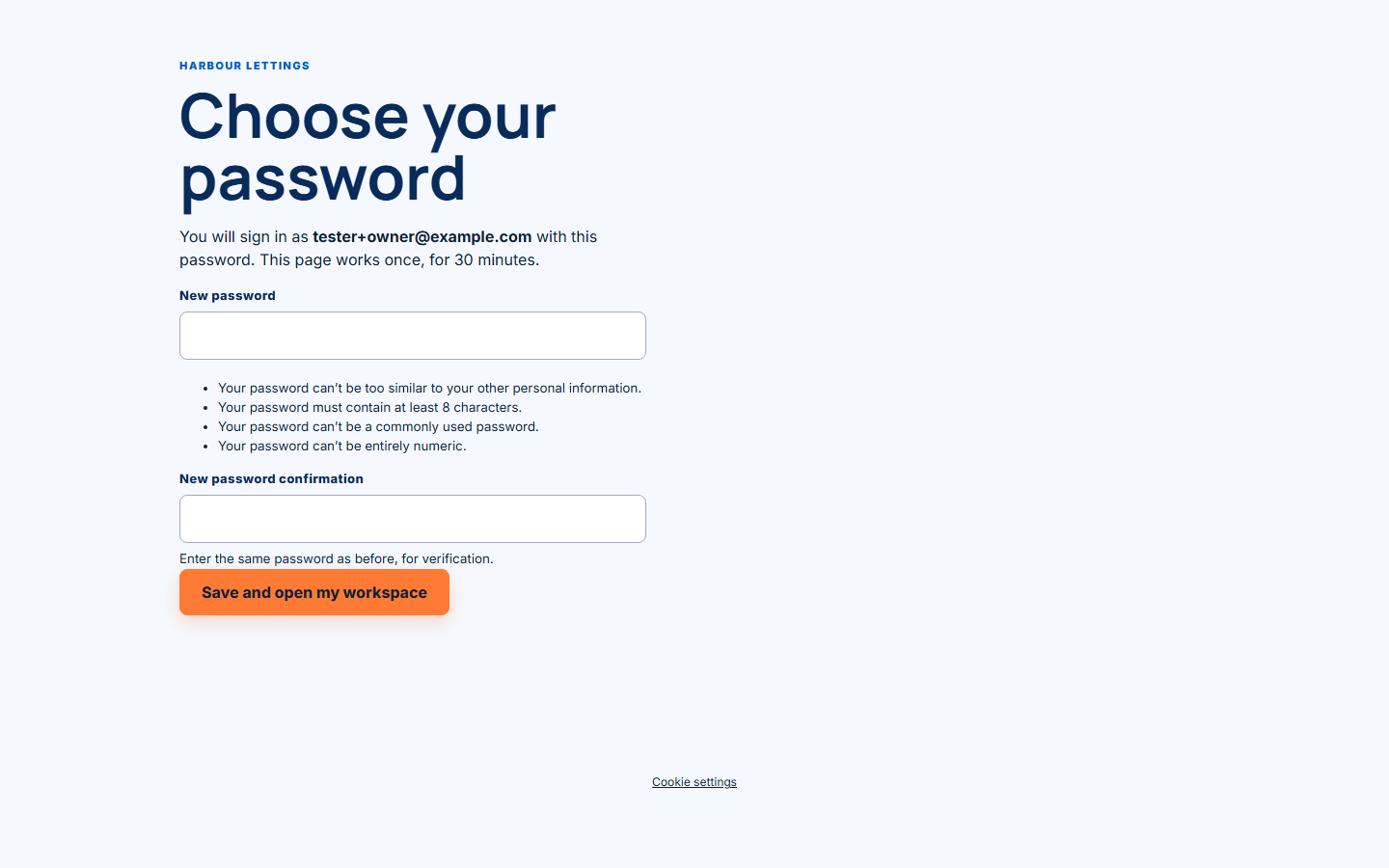
Figure 3. The password page. You sign in with the email address shown on it.
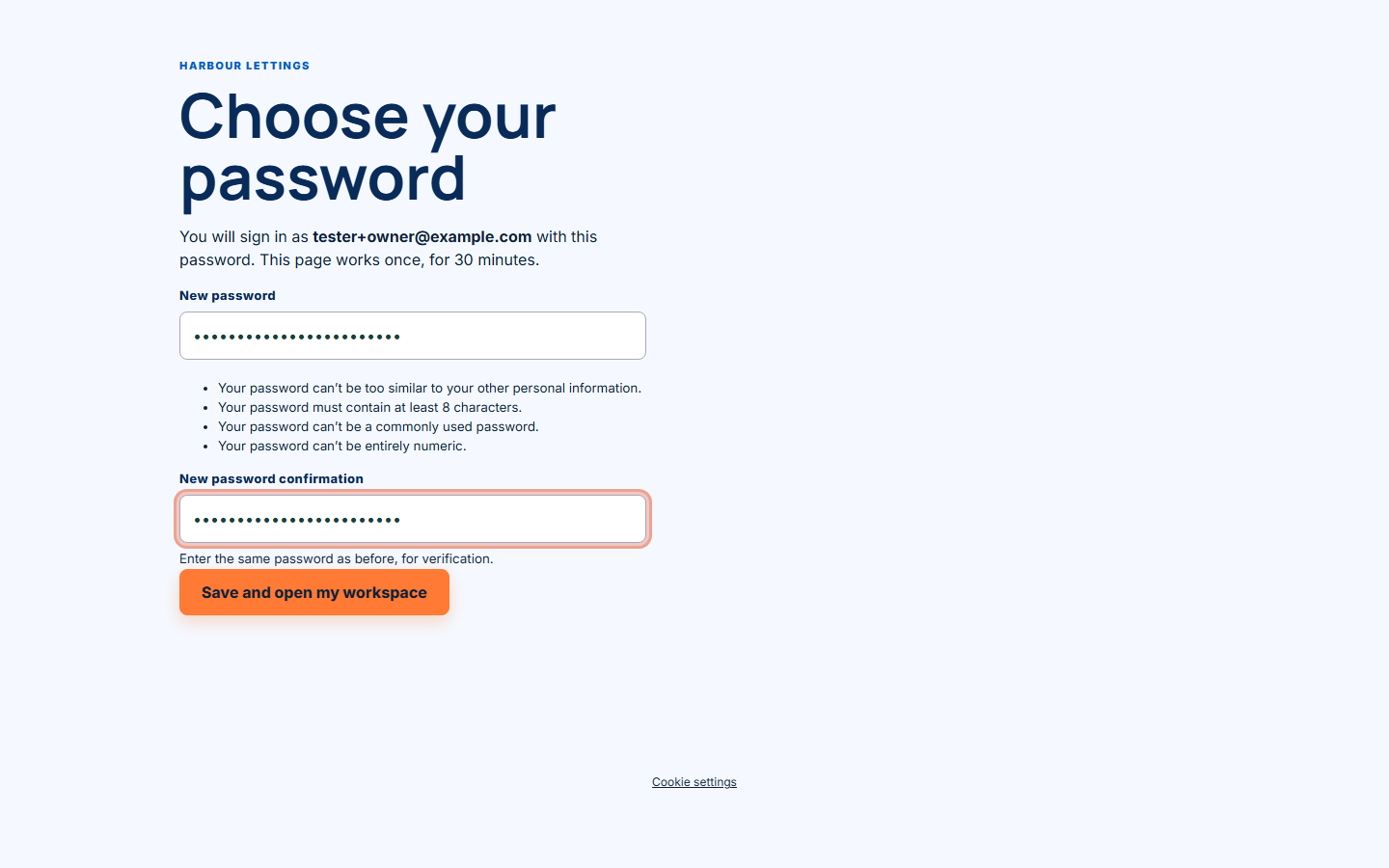
Figure 3a. Both password boxes filled with practice values, shown as dots.
If the 30 minutes run out or the link has been used, the Link not available page lets you ask for a new link. Your sign-up is not lost.
3. Set up two-step sign-in
Administrators can see application programming interface (API) keys, money and the whole team, so new administrators must set up a second check before going further. The page says: "Your account needs two-step sign-in. It takes about two minutes."
- Under Step 1. Scan this, open your authenticator app and scan the quick response (QR) code, a square picture your phone camera reads. If you cannot scan it, type the key shown under "Cannot scan? Type this key into your app instead".
- Under Step 2. Enter the 6-digit code it shows, type the six digits your app now shows for Short Stay Control.
- Press Turn on.
The page displays a unique QR code and a typed key for your account. Keep both private.
4. Save your recovery codes
The next page is Your recovery codes. It says: "Save these somewhere safe. Each works once if you lose your phone. We will not show them again."
- Press Download as text, or write the ten codes down, and keep them somewhere safe that is not on the same phone.
- Press I have saved them.
Next time you sign in, you type your password and then the six digits from your app. If you lose your phone, choose Use a recovery code instead and type one code.
What you will see
You land on Connect {your workspace name} to your booking system. The next stage is headed Set up {your workspace name}. Everything else opens once you are connected. Carry on with [Connect Hostaway](02-connect-hostaway.md) or [Connect Uplisting](03-connect-uplisting.md).
If something goes wrong
- The email has not arrived. Check your spam folder. If the link has expired, use Get a new link on the Link not available page. For password help after set-up, use Forgotten your password? on the sign-in page.
- "This link has expired" or "This link has already been used" appears on Link not available. Ask for a new link there. Each new link replaces the older one.
- "That code was not right. Enter the six digits your app shows now." appears while you turn on two-step sign-in. Check that your phone clock is automatic, then try the newest code. At a later sign-in, the message is "That code was not right. Check the time on your phone and try the newest code."
- You lost your phone. Use a recovery code. If you have lost those too, email support@shortstaycontrol.com. Another administrator in your workspace can also reset your two-step sign-in.
Never send us your password, recovery codes or card number.