
Help guides · Properties
Find and inspect a property
- For
- Owners and administrators, Office managers, Finance, Facilities coordinators, Management read-only
- Booking system
- Hostaway and Uplisting
- Last checked
Use Properties to find a home you manage, check its figures and open its records.
Steps
- Open Properties from the menu.
- Find the property card and select its name.
- On the property page, review Overview, Performance, Costs and Setup & compliance as needed. Use Open setup checklist from that tab for the checklist.
- If the home has no booking figures, check whether it is matched to the right booking system listing.
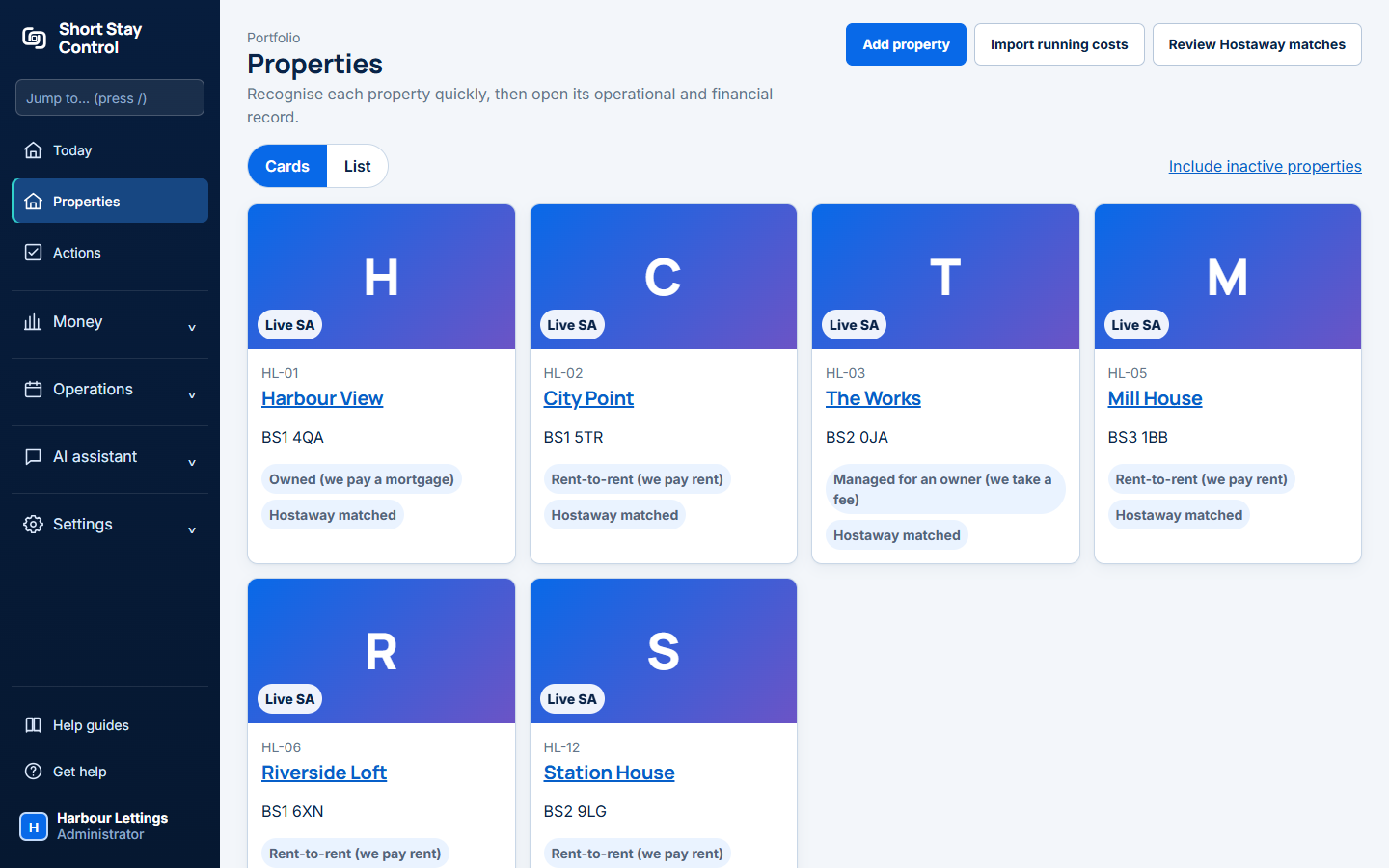
Figure 1. Property cards in the demonstration workspace.
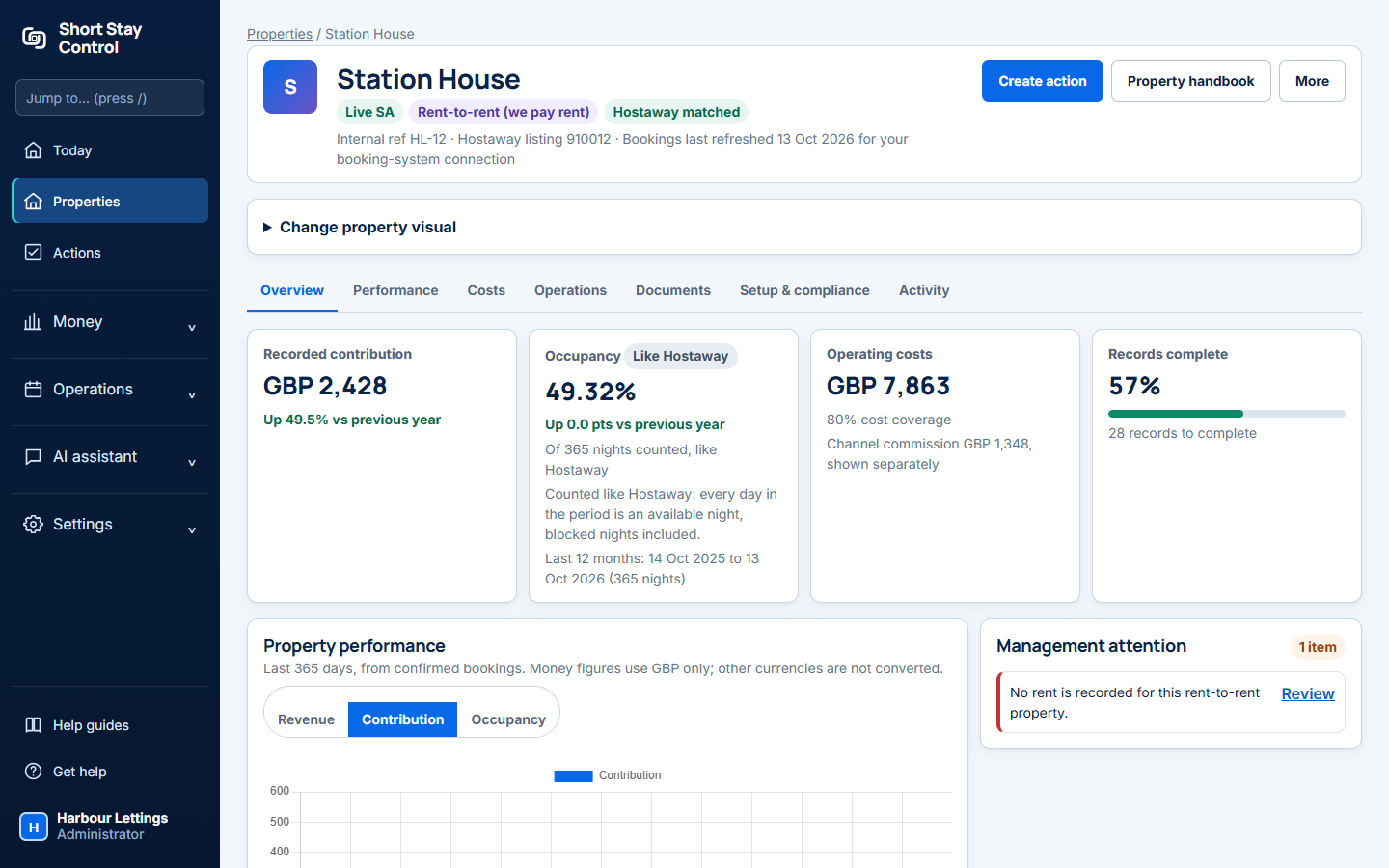
Figure 2. An individual property's page, using invented data.
Add a property
For a property managed through Hostaway or Uplisting, create its listing in that booking system first. After the next listings import, open Properties and select Review Hostaway matches or Review Uplisting matches to create an internal property from the listing or match it to one already there. During initial setup, listings with a clear name and address may become internal properties automatically. Add property creates a local property by hand; it does not create a Hostaway or Uplisting listing.
What you will see
Each card identifies the property and its current attention points. Live SA means live serviced accommodation in the property status. The property page brings its bookings, costs and records together. A property already live in Hostaway or Uplisting may still have records to verify in Short Stay Control; that checklist does not stop bookings. Administrators and operations managers can change property details. Finance members can see finance information where their role permits it. Facilities members are limited to their assigned properties; management read-only and members with documents access are not limited by that assignment check.
The separate R2R deals (rent-to-rent deals) page tracks possible property agreements before they become managed properties. Finance has a direct menu link. Administrators find R2R deals under Operations and R2R rating settings under Settings, then More settings. A candidate's area insight, approval and export controls belong to that deal workflow, not to a live property's booking figures.
If something goes wrong
- "No monthly figures yet." The page has no booking history to show for this property. Check its listing match and the last import.
- "Not matched to a Hostaway listing" or "Not matched to a Uplisting listing" means Short Stay Control cannot yet tie imported bookings to that property. Ask an administrator or operations manager to review the match.
- "No contracts, utilities or procedures recorded yet" means those records have not been added. Open Setup & compliance or Costs on the property.