
Help guides · Team and roles
Limit a colleague to assigned properties
- For
- Owners and administrators
- Booking system
- Hostaway and Uplisting
- Last checked
Property scope decides which homes a colleague in a restricted role can open. Their role still decides what they may do on those homes.
Steps
- Open Settings, then Team and access.
- Find the person under People with access and select the Review button on that person's row.
- Check the list of homes they can currently see.
- Add or remove assignments and choose Save property access.
- Ask the colleague to reload the app to see the new access.
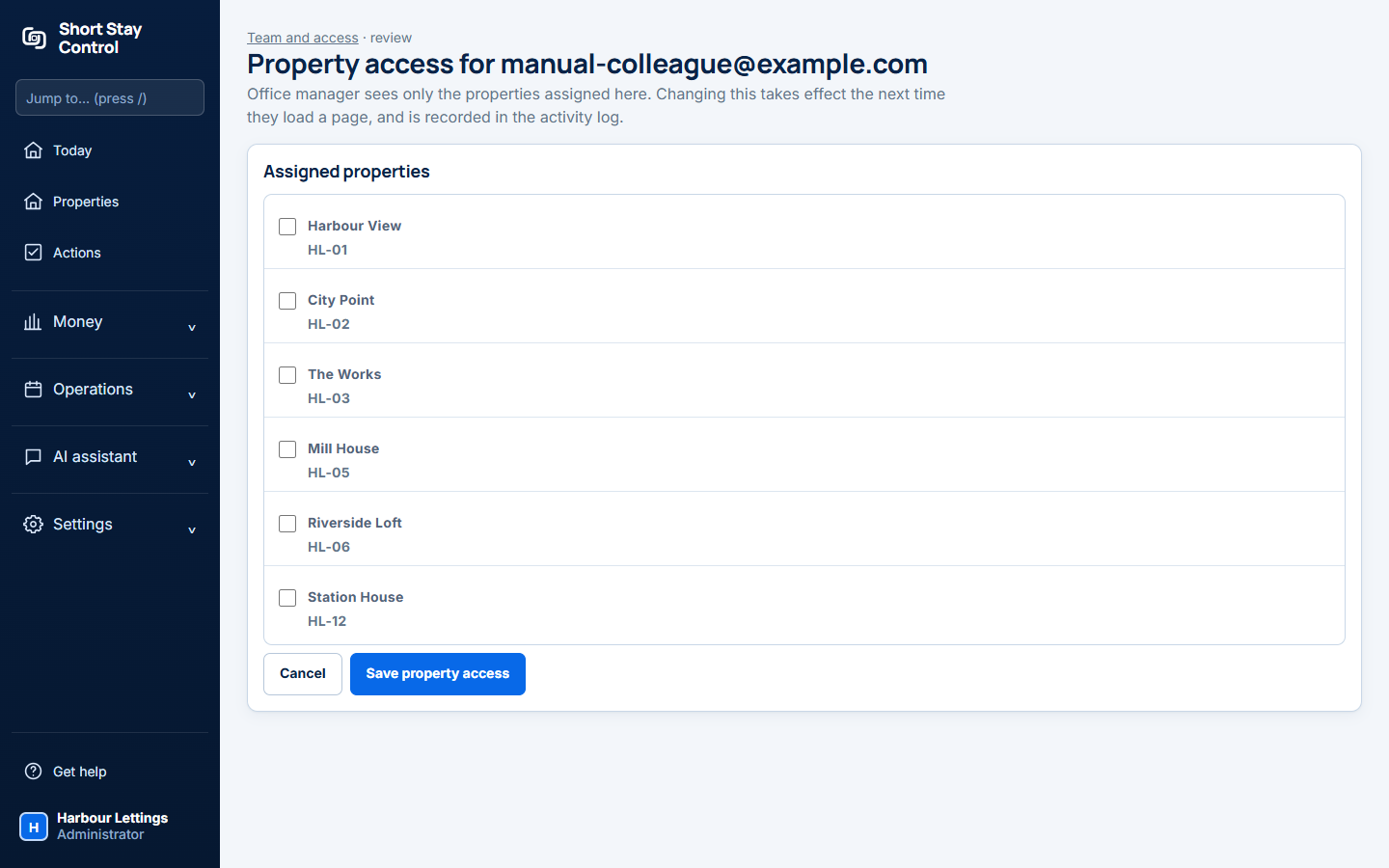
Figure 1. A local example member's property access screen.
What you will see
Office managers and facilities members can have property scope restrictions. Administrators have access to every property. A person who can file receipts may be able to open a property to confirm where their receipt landed. The role preview shows a role's permissions only; it does not combine the role with this person's assignments.
If something goes wrong
- "No visible properties." The facilities page has no properties the member can see. Review their assignments.
- If Review is absent for a person, their role may already have full property access.
- If a page remains unavailable after an assignment changes, check the member's role permissions as well as the property scope.