
Help guides · Connecting your booking system
Replace a booking system key
- For
- Owners and administrators
- Booking system
- Hostaway and Uplisting
- Last checked
Replace a key if your current Hostaway or Uplisting key has been revoked or you have deliberately made a new one.
Steps
- In your booking system, create or copy the replacement key. Keep it private.
- In Short Stay Control, open Settings, then Connections.
- Select the booking system connection and press Replace key.
- Paste the new application programming interface key into Paste the new API key.
- Confirm that the connection will pause, then press Save and test. The safe test runs automatically.
- Check that the connection returns to Healthy and has a recent Last sync.
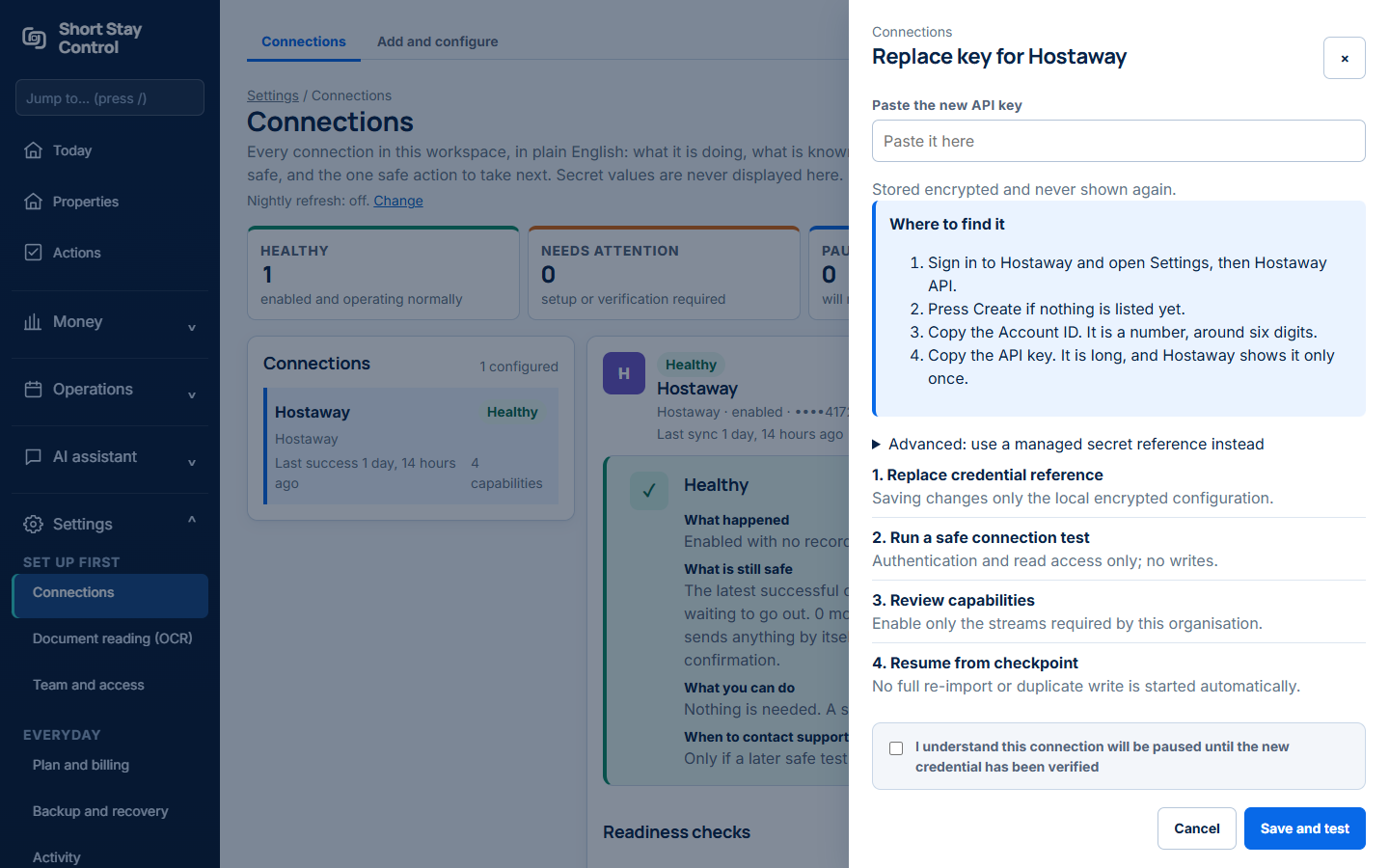
Figure 1. The replace key control on a simulated Hostaway connection.
What you will see
The old secret is never shown. The connection pauses until the new key passes a safe test. Imported data remains in the workspace while it is paused. Only administrators can replace keys.
If something goes wrong
- "Nothing was saved." The form then explains whether you need to tick the pause confirmation or paste a new key. Correct that item and try again.
- "Safe test failed." Open the connection readiness checks. Confirm that the new key belongs to the same booking system account.
- "New key saved and tested. Hostaway answered." The replacement worked for a Hostaway connection.
- A failed Hostaway test starts "The new key was saved but Hostaway did not accept it:" and ends "Check you copied the whole key." Copy the full key again from Hostaway and repeat Save and test.
- "A refresh is already running for this connection." Wait for the running job to finish before testing again.
Never send a key through Get help.