
Help guides · Team and roles
Reset a colleague's two-step sign-in
- For
- Owners and administrators
- Booking system
- Hostaway and Uplisting
- Last checked
An administrator can reset a colleague's second sign-in check if they have lost both their phone and recovery codes. The reset is recorded and the colleague is emailed.
Steps
- Open Settings, then Team and access.
- Find the colleague under People with access.
- Press Reset two-step sign-in and read the confirmation carefully.
- Confirm the reset only for the correct person.
- Tell the colleague that the reset signs them out everywhere. They must set up their second check again when they sign in. An administrator cannot reset their own second check.
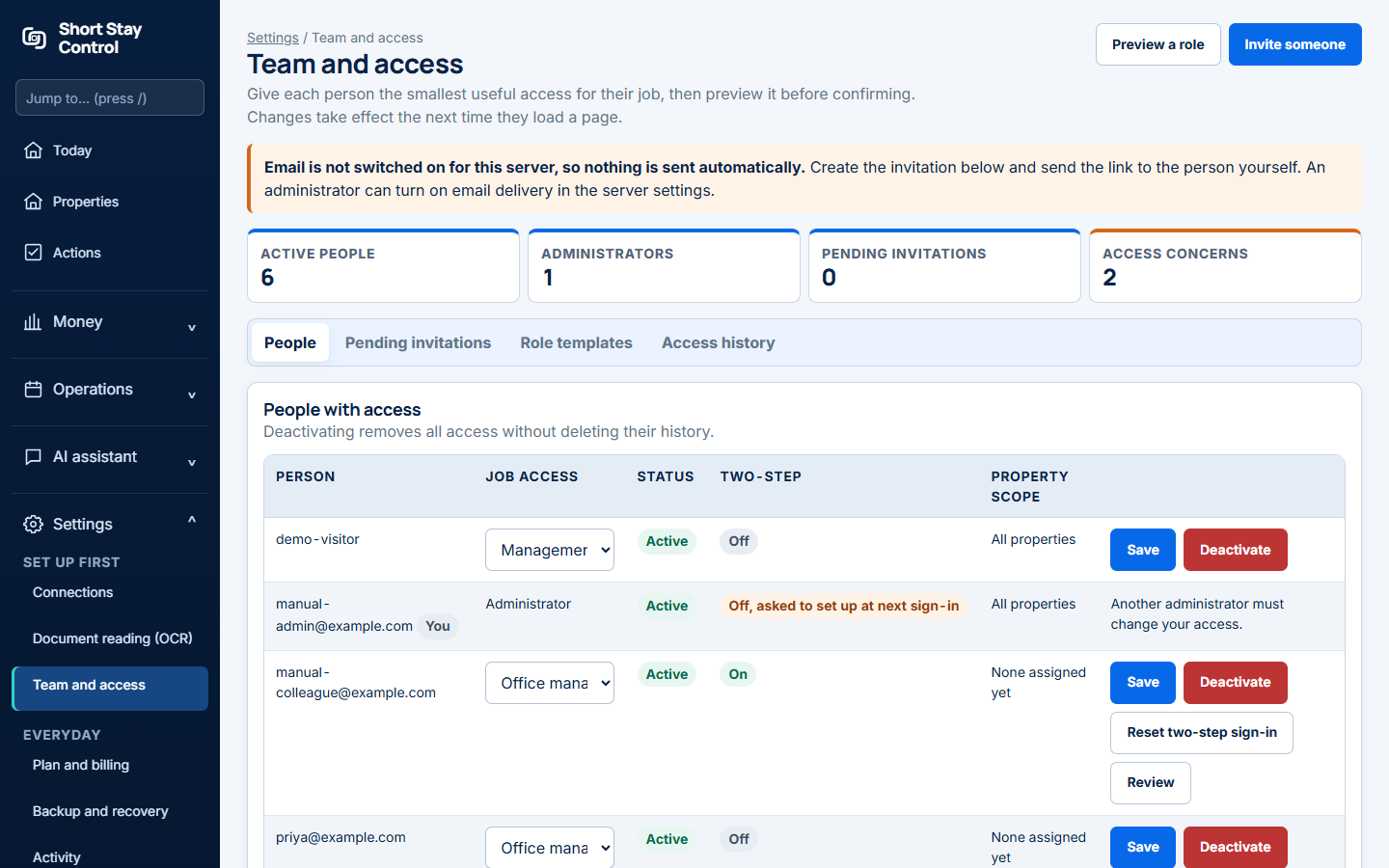
Figure 1. The reset control appears for a member whose two-step sign-in is on.
What you will see
After the reset, the team page says "Two-step sign-in reset. We have emailed them to say so." Administrators must set up a new check immediately after their next password sign-in. Other roles can sign in with their password while they arrange a new check. Only administrators can reset another person's check.
If something goes wrong
- If Reset two-step sign-in is absent, that person's second check may not be set up or confirmed.
- If the wrong person was selected, stop at the confirmation prompt and return to the team list.
- If the email does not arrive, ask the colleague to check spam. If they remain locked out, email support@shortstaycontrol.com; Get help requires sign-in.