
Help guides · Receipts and documents
Review and approve a receipt
- For
- Owners and administrators, Finance
- Booking system
- Hostaway and Uplisting
- Last checked
Approval records the checked cost against a property or the company in Short Stay Control. It is the point at which the cost enters reporting.
Steps
- Open Money, Receipts, then a receipt under Needs review.
- Opening an unclaimed receipt reserves it for you while you work. Check for Reserved for you at the top.
- Compare the original with the supplier, date, total, category and property shown on the form.
- Correct any wrong fields and check how the cost is divided.
- Choose Approve cost only after the amount and allocation match the document. Use Save for later to pause or Release if another colleague should finish it. Without approval permission, use Save these items.
Office managers, operations managers and Finance: open Receipts directly from the main menu when your role has document access. Approval also requires approval permission.
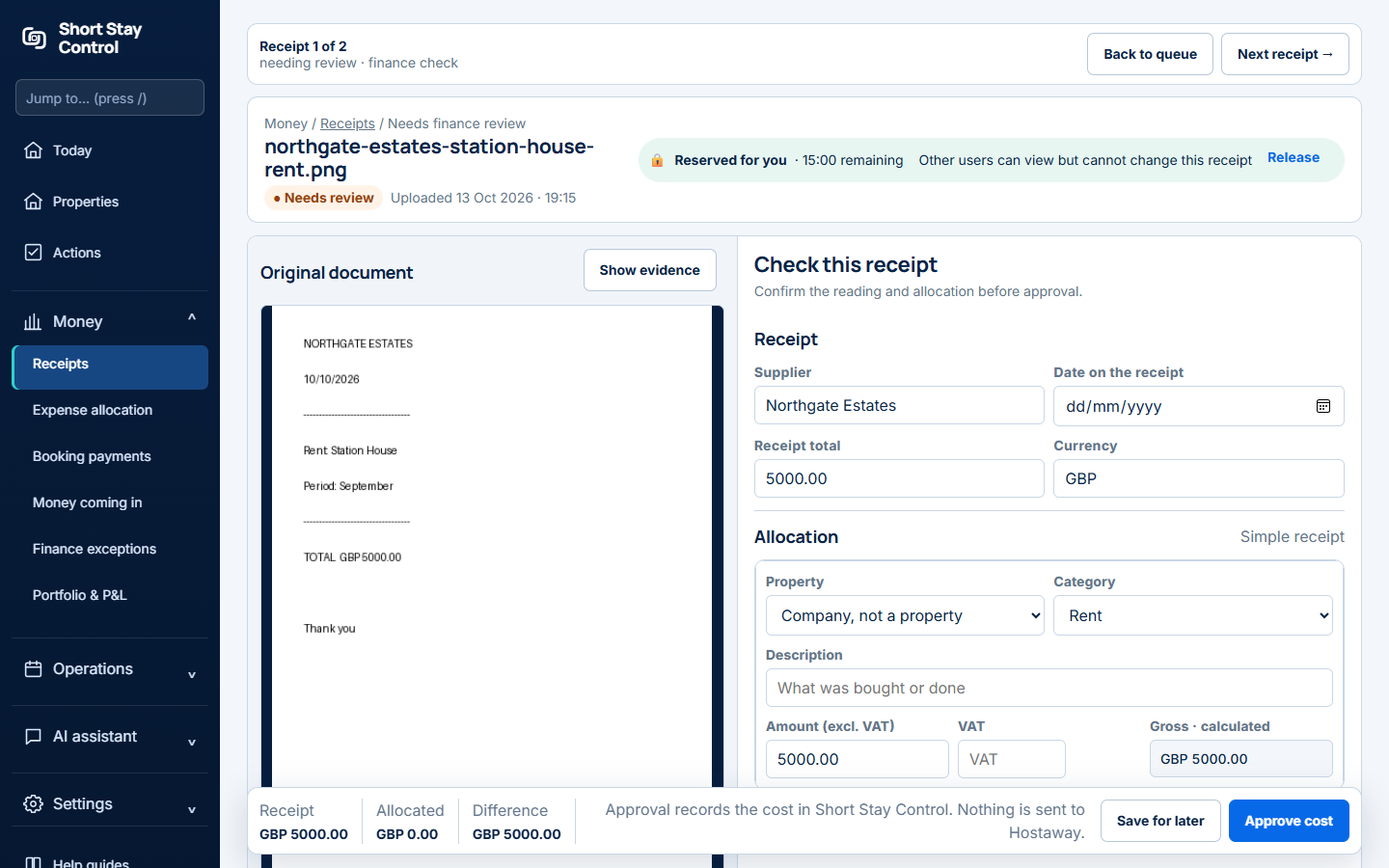
Figure 1. The full review page after an administrator opens an unclaimed receipt. Check the fields and allocation before choosing Approve cost.
What you will see
The review page places the original beside the editable details. A reservation stops two people changing the same receipt together. Finance members and administrators can approve by default. Office managers can prepare a receipt but do not have approval permission by default. In a Hostaway workspace, approval still does not send the cost to Hostaway.
If something goes wrong
- "You can view it, but cannot change or approve it until they finish or the reservation expires." Another person has reserved this receipt. Wait for them to release it or ask a manager to review the lock.
- "Worth checking before you approve this." Follow the highlighted details and compare them with the original.
- "Preview is not available for this file type." Download the original in a compatible app, then return to the review page.