
Help guides · Team and roles
Set roles and property access
- For
- Owners and administrators
- Booking system
- Hostaway and Uplisting
- Last checked
Roles control which menus and actions a colleague can use. Property scope limits which homes some roles can see.
Steps
- Open Settings, then Team and access.
- Choose Preview a role to see its current permissions.
- Open Role templates if you need to change a non-administrator role.
- Return to People with access and use Save on the person's row to change their role. Set property scope separately through the Review button on that person's row.
- Ask the colleague to reload a page so the change takes effect.
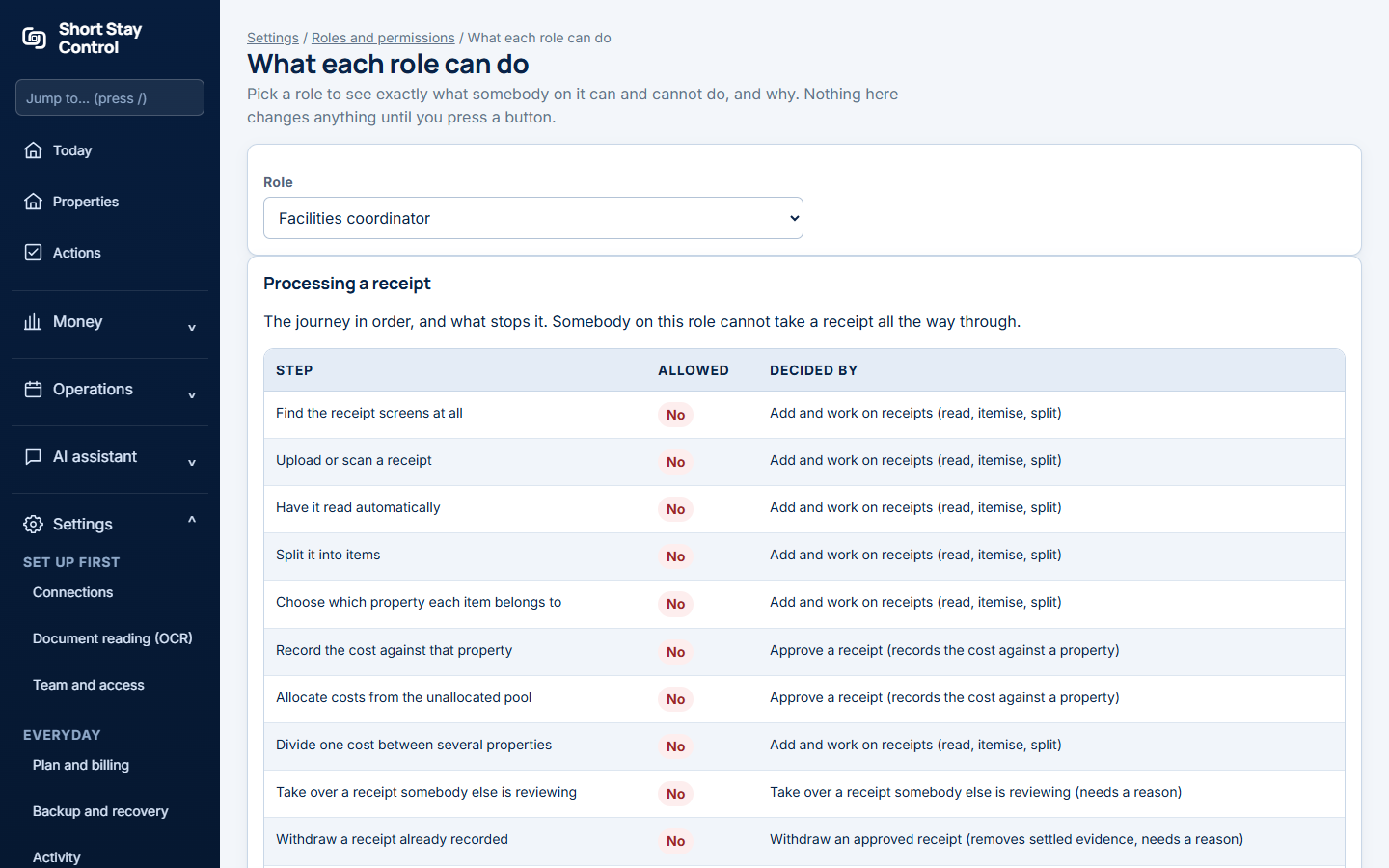
Figure 1. The role preview explains what a selected role can do.
What you will see
Administrators can do everything; their permissions cannot be reduced. Operations managers can manage operations and property work. Office managers can manage operations and prepare receipts but do not approve costs by default. Finance members can see and change financial records and approve receipts. Facilities members manage assigned facilities work. Management read-only members can view property and finance information allowed by their role. Your administrator may customise non-administrator role templates. The Send an approved cost to Hostaway permission is absent in an Uplisting workspace.
Who can see which properties
Anyone opening a property needs property viewing permission. With that permission, administrators, operations managers, finance members and management read-only members always see every property. Office managers also see every property by default because their role includes document management permission; if an administrator removes that permission, they can be limited to assigned properties. Only facilities members are limited to assigned properties by default. Giving a facilities member document management permission lets them see every property so they can check receipts filed against any property. Without property viewing permission, an assignment alone does not grant access.
If something goes wrong
- "Administrator is a high-trust role." Read the warning before granting it; this role includes billing, team access, integrations and financial writes.
- If the preview says someone "cannot take a receipt all the way through", check which separate receipt permissions the role has.
- If a colleague cannot open a property, check both their role and assigned property scope.