
Help guides · Receipts and documents
Send an approved cost to Hostaway
- For
- Owners and administrators
- Booking system
- Hostaway
- Last checked
Sending is a separate decision after approval. It can create a Hostaway expense, so check the live preflight for every selected cost.
Steps
- Open Money, then Receipts.
- Under the Ready for Hostaway preflight card, select Show ready, then choose the approved costs to send.
- Press Preflight and send selected. Read the live check of the connection, property and amount.
- Confirm the send only when every selected line is correct.
- Check the result under Hostaway sending history on the page.
Finance: open Receipts directly from the main menu when your role has document access. Sending also requires the relevant approval and sending permissions.
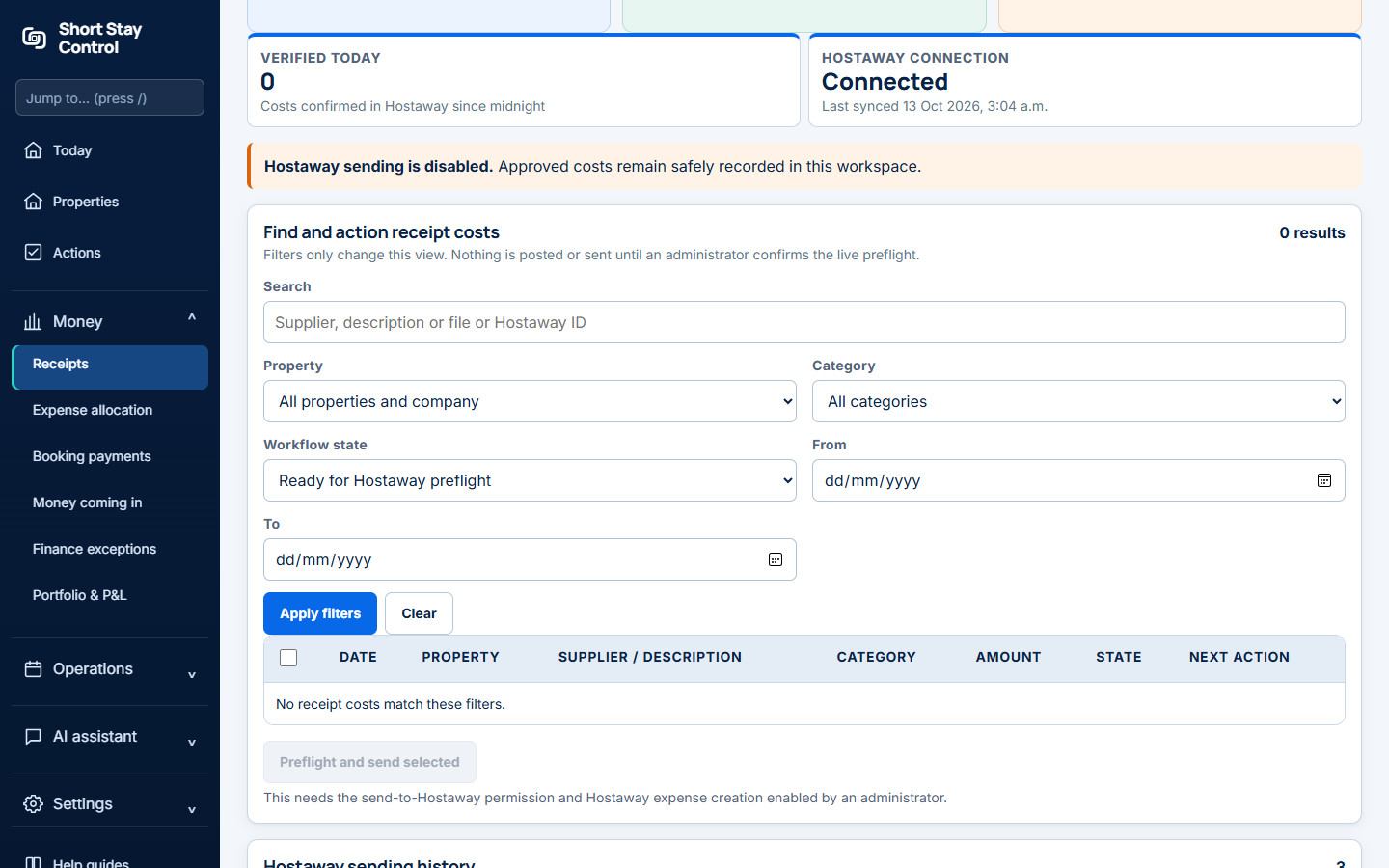
Figure 1. The preflight area in an invented workspace. This sample has no ready costs, so the send control is disabled.
What you will see
Only an administrator with send permission can confirm this action. The page says "Nothing reaches Hostaway until an administrator runs the preflight and confirms the send." This action is unavailable for Uplisting because Uplisting does not receive costs. Approval alone records the cost only in Short Stay Control.
If something goes wrong
- "Hostaway sending is disabled." The approved cost remains safely recorded in this workspace.
- "No expenses connection" means there is no enabled Hostaway connection with expense access. Check Connections.
- If a send is recorded as uncertain, do not retry at once. The page says "Each is recorded as uncertain. Re-check it before trying again, in case it reached Hostaway after all."