
Help guides · Operations
Keep a supplier directory
- For
- Owners and administrators, Operations managers, Office managers, Facilities coordinators
- Booking system
- Hostaway and Uplisting
- Last checked
The supplier directory lets you link contractors and companies to jobs and invoices.
Steps
- Open Operations, then Suppliers.
- Select Add supplier and enter the details you need for your team.
- Save the supplier, then link it to relevant properties or work orders.
- If you have many suppliers, use Download the template and the import area.
Office managers, operations managers and facilities members: open Suppliers directly from the main menu.
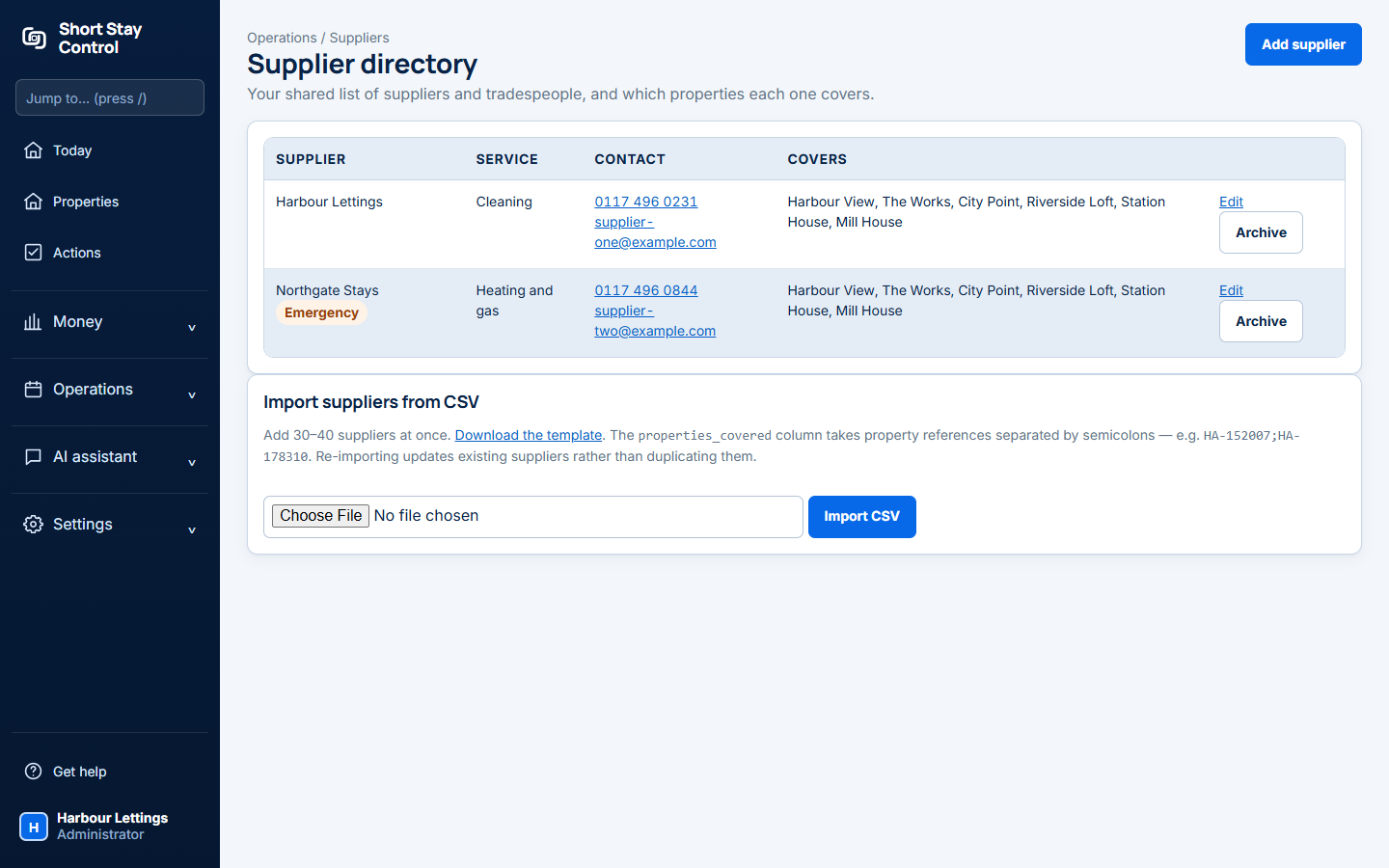
Figure 1. Supplier directory and add controls.
What you will see
The list shows suppliers and the properties they cover. Re-importing a supplier from the template updates its existing record rather than making a duplicate. Administrators, office managers and operations managers with facilities permission can manage suppliers; other team members may have viewing access only.
If something goes wrong
- "No suppliers yet. Add the contractors and companies you use, so their jobs and invoices can be linked to them." Start with Add supplier.
- If you cannot see Add supplier, ask an administrator to check your facilities permission.
- If an imported supplier is missing, check the template's property references and the import result before trying again.