
Help guides · Operations
Create and follow a work order
- For
- Owners and administrators, Operations managers, Office managers, Facilities coordinators
- Booking system
- Hostaway and Uplisting
- Last checked
Use Facilities to record repairs and other work against a property, then follow them to completion.
Steps
- Open Operations, then Facilities.
- Select Add work order and choose the property, job and Assigned to person.
- Select Create work order in the drawer, then open the saved order to track progress.
- Review due work and linked supplier details on the same facilities page.
Office managers and operations managers: open Facilities directly from the main menu. Facilities members use Facilities records.
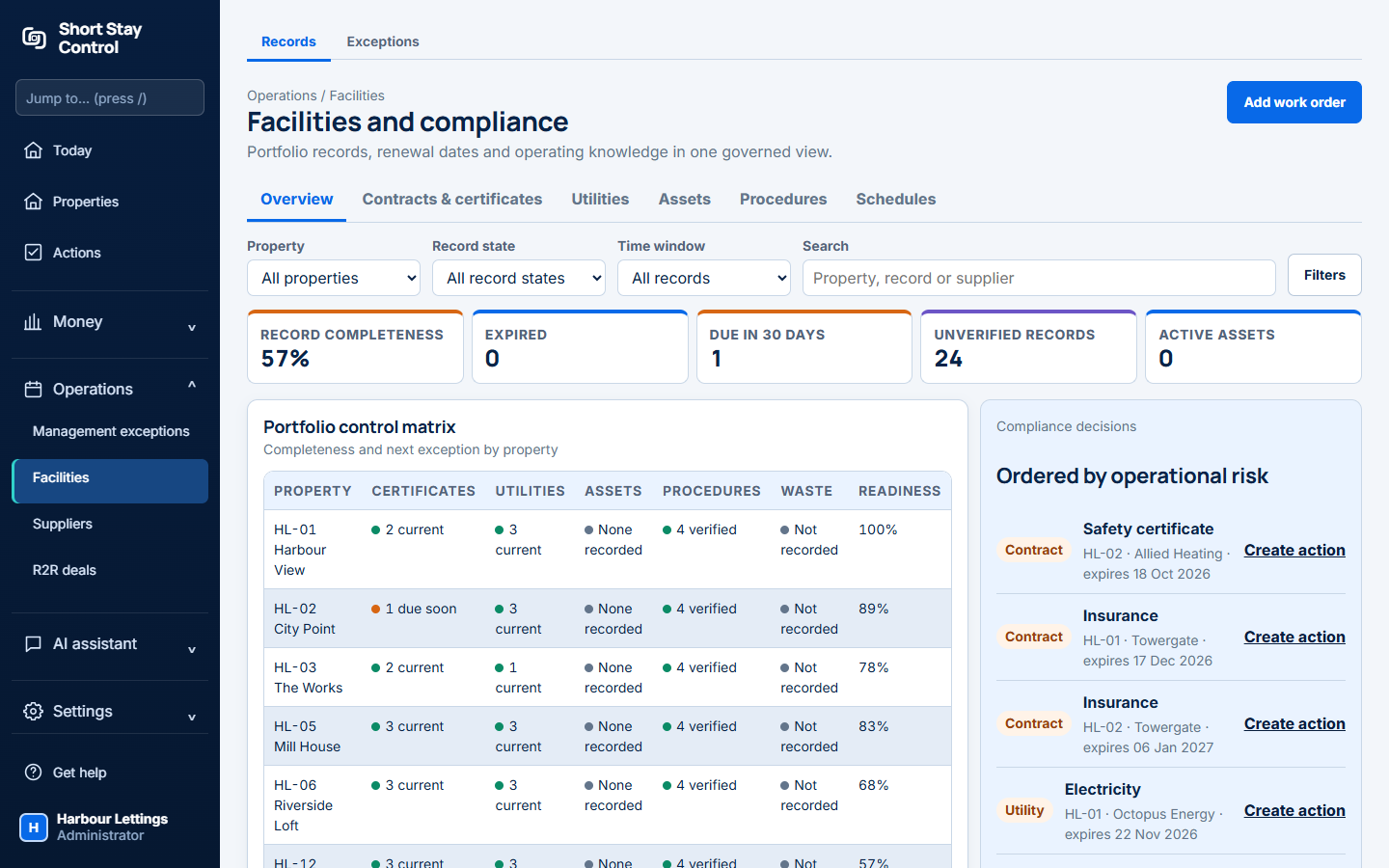
Figure 1. The facilities overview and work order area.
What you will see
Facilities brings work orders, recurring tasks, renewals and property records together. Administrators, office managers and operations managers with facilities permission can create work orders. A member with viewing access alone may see records but cannot add one. Facilities members see the properties assigned to them.
If something goes wrong
- "No open work orders." There is no open work in the current view. Use Add work order when a new job is needed.
- "Your role can read facilities records. Ask an administrator for the facilities permission to add one." Ask an administrator to review your role.
- "No visible properties." Ask an administrator to check your property assignments.