
Help guides · Getting started
Your menu by role
- For
- Owners and administrators, Operations managers, Office managers, Finance, Facilities coordinators, Management read-only
- Booking system
- Hostaway and Uplisting
- Last checked
Your workspace role changes the links in the main menu. An administrator sees grouped sections. Other roles usually see direct links. Your access to a page also depends on the permissions your administrator has set.
Steps
- Open your workspace and look at the left menu. On a phone, open the menu button first.
- Find your role beside the workspace name at the bottom of the menu.
- Use the list below to find the page named in a guide. If your menu does not show it, ask your administrator to check your role and permissions.
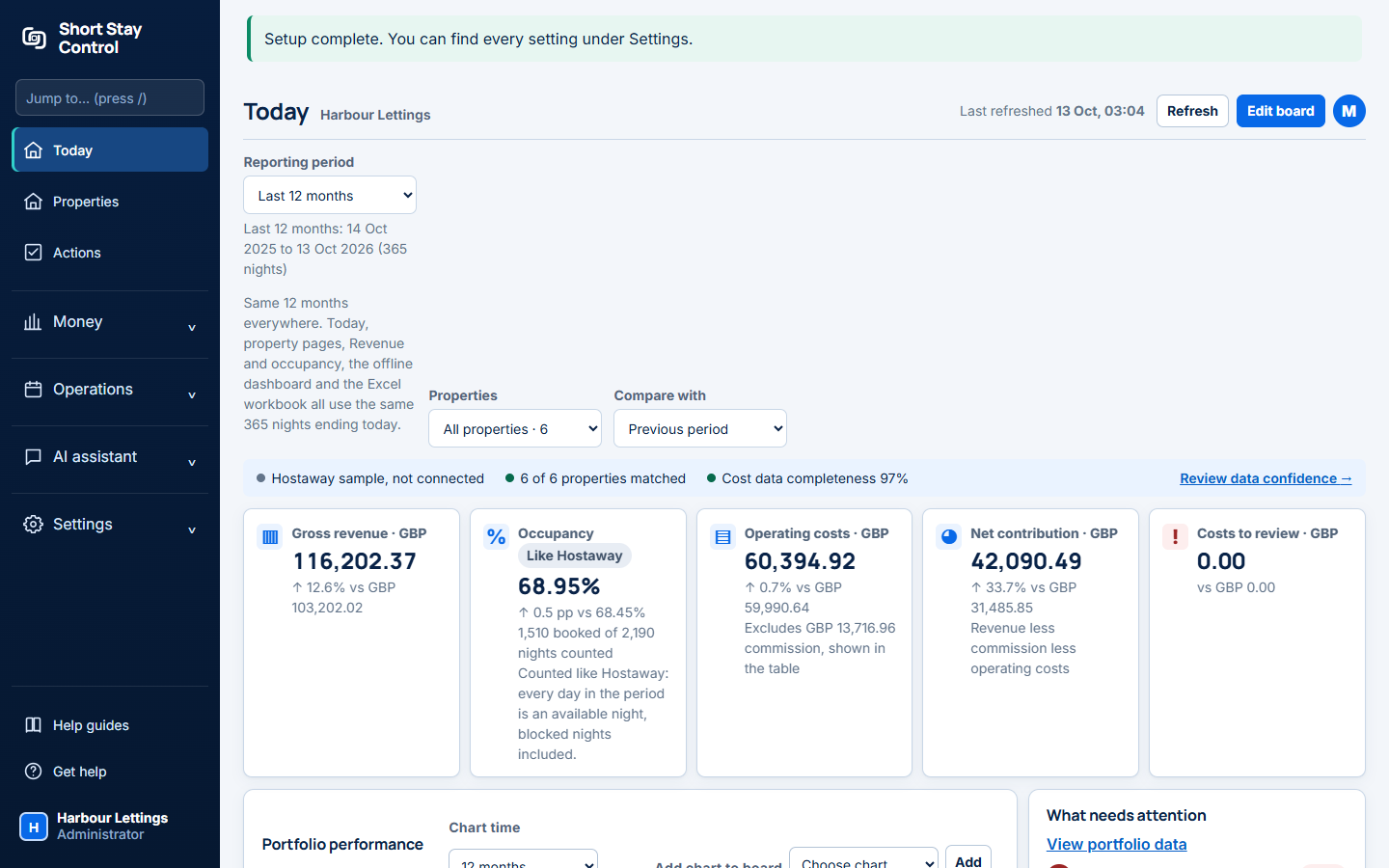
Figure 1. A workspace menu in the local demonstration. Your links depend on your role.
What you will see
- Administrator: direct links to Today, Properties and Actions; grouped Money, Operations, AI assistant and Settings sections. Help guides and Get help are at the bottom.
- Operations manager or Office manager: direct links to Today, Properties, Management exceptions, Actions, Facilities, Suppliers and Receipts. Activity appears by default for operations managers and with audit access for other roles.
- Facilities: direct links to Today, Properties, Facilities exceptions, Facilities records, Suppliers and Actions. Receipts and Activity depend on their permissions.
- Finance: direct links to Today, Portfolio and P&L (profit and loss), Finance exceptions, Booking payments, Money coming in, Properties, R2R deals (rent-to-rent deals) and Receipts. Expense allocation appears for Hostaway.
- Management read-only: direct links to Today, Portfolio and P&L, Finance exceptions, Properties, Actions and Ask a question. Expense allocation appears for Hostaway. Receipts and Activity depend on their permissions.
Every signed-in role has Help guides and Get help at the bottom. Guest issues are switched off, so they are not part of this guide. A newly created workspace that must connect its booking system first shows Connect your booking system until that step is complete.
If something goes wrong
- If a guide says Settings, Money or AI assistant but your menu has no such group, use the direct link for your role above. For example, Finance opens Portfolio and P&L directly.
- If there is no direct link either, ask your administrator to check your role and permissions. A menu link alone does not grant access to a page.
- If you cannot sign in to ask for help, email support@shortstaycontrol.com.